At SimpliSafe®, your safety is our top priority. If you’ve recently received communications from us regarding your Base Station and devices, it’s important that you complete the following steps in this article.
Please complete all the following steps in the order listed in this article, even if your devices appear to be functioning properly in your app.
Scroll down to the bottom of the screen until you see Basic Info
Next to Software Version, you will see what firmware your camera is running
If your camera is not running firmware 1.45+, you can prompt the update to install by opening the SimpliSafe® Mobile App. After about 5 minutes, take the steps above to confirm that the camera successfully updated.
Step 2: Update your Smart Lock
If you do not have a Smart Lock, you can jump down to the next step below.
You will also need to update your Smart Lock and/or Smart Lock Series 2 to firmware version 1.7.
Scroll to the bottom of the screen and select X Remove Device
Step 2: Power Cycle the Smart Lock
Slide open the front cover of the Smart Lock to expose its battery compartment
Remove one battery and leave it out for at least 5 seconds
Reinsert the battery, but leave the front cover off
Step 3: Factory Reset the Smart Lock
Press and hold the pairing button—located above the batteries—for 20 seconds
After pressing the pairing button, all 3 lights on the Smart Lock will flash 3 times in a row to confirm that the Smart Lock has been reset
If the lights don’t flash at all, or if the center light begins to slowly blink, that indicates that the batteries in the Smart Lock need to be replaced
After reinstalling your Smart Lock to your system, try updating the device again.
Step 3: Reset your Base Station
Next, you will need to reset the Base Station. To do this:
Unplug the Base Station from power by removing the cable from the bottom of the device
Using a Phillips head screwdriver, remove the screw on the bottom of the Base Station
Twist the bottom cover counter-clockwise to expose the battery compartment
Remove a single battery from the Base Station
Wait 10 seconds, then reinsert the battery
Place the bottom cover back on the Base Station and twist it clockwise, then secure the screw back into place
Re-insert the power cable back into the Base Station and plug it into a working outlet
Step 4: Update your Base Station
After rebooting your Base Station, you will need to update it to firmware 2.21. You must update your system’s firmware with the Keypad by taking the following steps:
Press Menu
Enter your Master PIN
Select System Settings
Wait 2 minutes
After 2 minutes, the Keypad's screen may dim. You can wake up the screen by either waving your hand in front of it or pressing the screen directly
Then, Check for Updates
Your Keypad will either say:
“Updates are available”
“Your system is checking for an update” followed by “Downloading”
If your Keypad says “Updates are available,” press the right side of the Keypad’s screen. The next screen will say “System Update Available.” Select “Install Now” to install the firmware update.
If your Keypad says “Downloading,” please complete the following steps after the download is complete:
Press Menu
Enter your Master PIN
Select System Settings
Then, Check for Updates
Your Keypad’s screen will say “Updates are available.” Follow the prompt on the Keypad to install the firmware update
Please wait for the Base Station to completely update before proceeding to the next step. You can use your Keypad to check what firmware your system is running by going to:
Press Menu
Enter your Master PIN
Select System Settings
Scroll down to Diagnostics
Scroll over to Base Station
Step 5: Resynchronize your devices
After completing steps 1-4 above, you will need to resynchronize any of the following devices you have paired to your system. Click to expand the collapsible section for the device you wish to learn more about.
If you have an Extra Siren on your system, you will now need to resynchronize it.
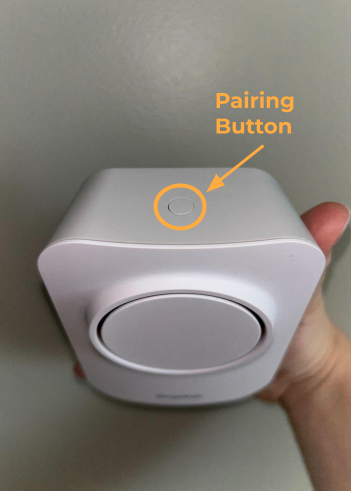
To resynchronize your Extra Siren, simply press the pairing button on the device.
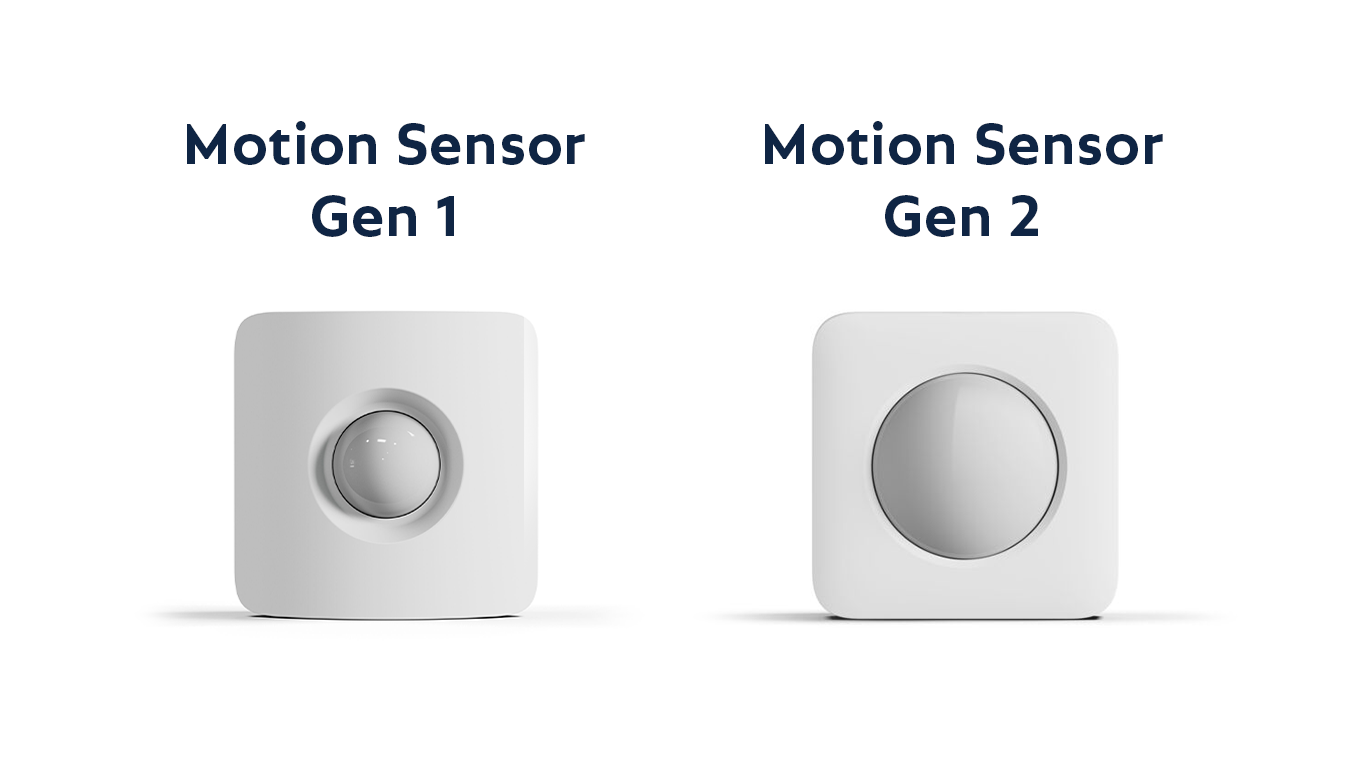
If you have any Motion Sensor Gen 2s on your system, you will need to resynchronize them next.
If you don’t know which version of the Motion Sensor you have, you can tell by looking at the size of the dome on it. The Motion Sensor Gen 2 has a dome that is approximately 1 ½ inches in diameter. If the dome on your Motion Sensor is smaller than 1 ½ inches, then you have the Motion Sensor Gen 1.
You can also see the photo below for a side-by-side comparison between the two Motion Sensors.
To resynchronize your Motion Sensor Gen 2, take the following steps:
Slide the Motion Sensor Gen 2 up and off its bracket. If the sensor is not mounted on a wall, this may take some light force
Remove the battery from the device and wait 10 seconds
After 10 seconds have passed, put the battery back into the device and place it back on its bracket
If you have any of the above cameras on your system, you will need to resynchronize them next. To do this, you may follow 1 of 2 options:
As a first option, you can power cycle any of these cameras that you may have on your system.
Outdoor Security Camera Series 2 and/or Wireless Outdoor Security Camera
To power cycle either the Outdoor Security Camera Series 2 or Wireless Outdoor Security Camera:
Twist the cap on the camera counterclockwise and lift it off the camera
Remove the battery from the camera and wait 10 seconds
After 10 seconds have passed, put the battery back into the camera, making sure that the three gold circles on the battery are facing up and and battery’s tab is facing outwards
Twist the cap back onto the camera clockwise until your hear it click into place
You’ll know that your camera has been assembled properly once it chimes and begins to flash white.
Smart Alarm Wireless Indoor Security Camera
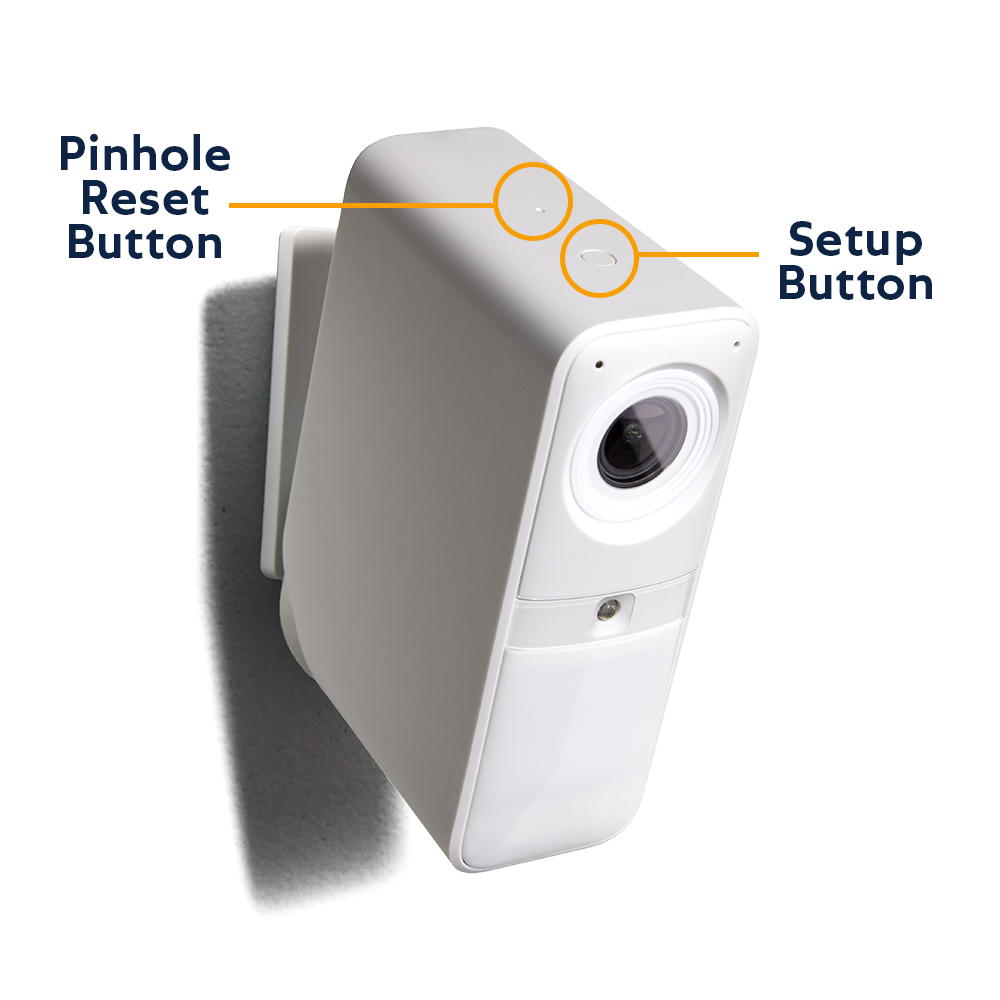
There are two buttons on the top of the Smart Alarm Indoor Camera, the setup button and the smaller pinhole button (pictured below.) To power cycle the camera, you will need to press the pinhole button only using a small item like the tip of a pen or a paperclip.
You’ll know that your camera has been power cycled once it chimes and begins to flash white.
Cameras will automatically resynchronize to the Base Station every 7 hours.
If you do not want to power cycle your cameras, please wait 7 hours for them to resynchronize automatically. If you would like to resynchronize them immediately, you can power cycle the cameras by following the steps listed in option 1 above.
To resynchronize your Smart Lock and/or Smart Lock Series 2, you will need to manually lock and unlock the Smart Lock.
Step 6: Confirm your devices are working properly
As a last step, you will need to check that any of the following devices that you have paired to your system are working properly. Click to expand the collapsible section for the device you wish to learn more about.
If you find that your devices are not working properly during this testing, please contact our Support teamfor additional assistance.
To confirm that your Extra Siren is working as intended, you will need to test the device in Test Mode.
As a first step, you will need to place your system into Test Mode by taking the following steps:
Disarm your system by pressing OFF on the Keypad
Press the Menu button on your Keypad
Enter your Master PIN
Scroll until Test Mode is highlighted
Use the arrow and tap to the right to enter Test Mode
You’ll know that you’re in Test Mode when you see a circle on the Keypad’s screen with the text “Test each device by pressing its button”
After entering Test Mode, you can test the Extra Siren by pressing the pairing button on the top of the device. You’ll hear the Base Station announce “Siren,” confirming that the test was successful.
To confirm that your Motion Sensor Gen 2s are working, you will need to test them in Test Mode.
As a first step, you will need to place your system into Test Mode by taking the following steps:
Disarm your system by pressing OFF on the Keypad
Press the Menu button on your Keypad
Enter your Master PIN
Scroll until Test Mode is highlighted
Use the arrow and tap to the right to enter Test Mode
You’ll know that you’re in Test Mode when you see a circle on the Keypad’s screen with the text “Test each device by pressing its button”
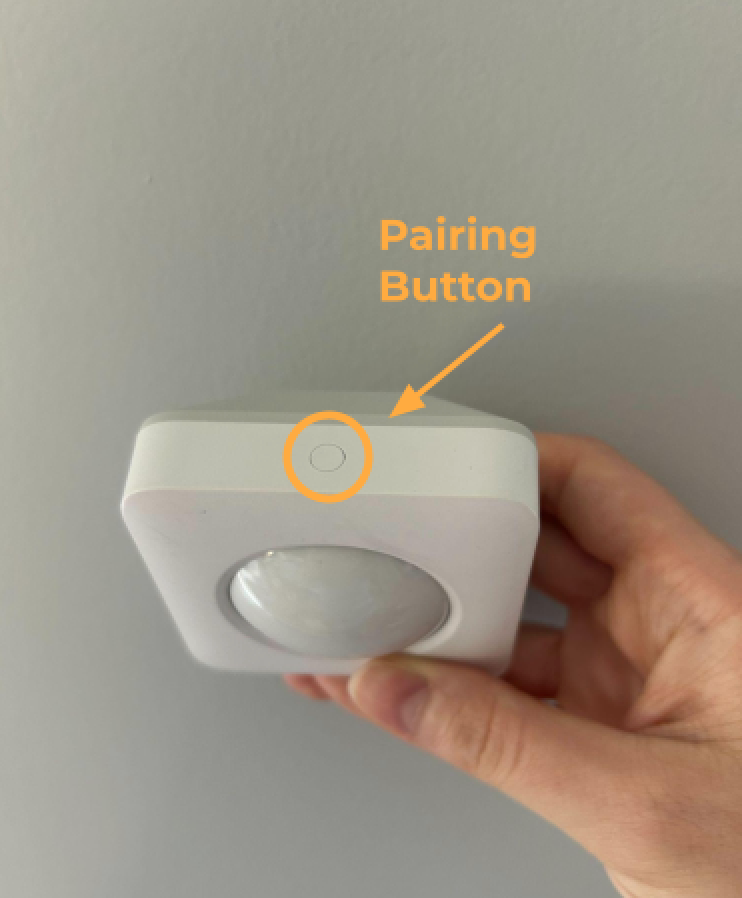
After entering Test Mode, you can test the Motion Sensors by pressing the pairing button on the top of each device. You’ll hear the Base Station announce “Motion Sensor,” confirming that the test was successful.
If, when resynchronizing your cameras, you opted to power cycle them, you may follow these steps now. If you decided to wait 7 hours, you must follow these steps after the 7 hours have passed.
To check if your cameras are working properly, you will need to put your system into Test Mode and confirm that all of the cameras on your system filmed a recording.
To put your system into Test Mode:
Disarm your system by pressing OFF on the Keypad
Press the Menu button on your Keypad
Enter your Master PIN
Scroll until Test Mode is highlighted
Use the arrow and tap to the right to enter Test Mode
You’ll know that you’re in Test Mode when you see a circle on the Keypad’s screen with the text “Test each device by pressing its button”
After your system has been put into Test Mode, check your Timeline and confirm that each of the cameras on your system filmed a recording.
To check if your Smart Lock and/or Smart Lock Series 2 is working correctly, you will need to lock and unlock it using the SimpliSafe® Mobile App. If the Smart Lock locks and unlocks successfully, your device is working properly.


 Please complete all the following steps in the order listed in this article, even if your devices appear to be functioning properly in your app.
 Please wait for the Base Station to completely update before proceeding to the next step. You can use your Keypad to check what firmware your system is running by going to: