
Alarm Screen within the SimpliSafe® App
Overview
Alarm Screen is an optimized, in-app alarm handling experience. With critical alarm information consolidated on a single screen - you can feel more confident in your choice of canceling an alarm or requesting emergency dispatch through Alarm Screen.
The alarm screen feature is an updated version of your in-app alarm moment experience. No other adjustments have been made to your alarm response.
Requirements
This feature is only available in the SimpliSafe® Mobile App (opens in new tab) on your phone or tablet. The SimpliSafe® Online Account (opens in new tab) (which you navigate to in a browser) is not supported by this feature.
You’ll also need a residential or business monitoring subscription:
Pro Plus
Pro
Core
Standard
While not a requirement, enabling push notifications for the SimpliSafe® App (opens in new tab) is strongly encouraged, to ensure you’re receiving alerts if an alarm occurs at the property your system resides in. You’ll also want to ensure that Critical Alarm Notifications (opens in new tab) for your phone are turned on for SimpliSafe®, so we can bypass any Do Not Disturb states or profiles set up for your device.
How does Alarm Screen work?
When you have push notifications enabled, you will receive a push notification the moment an alarm is triggered for your system. Tapping the notification will open the SimpliSafe® Mobile App (opens in new tab) on your phone or tablet, and bring you straight to the Alarm Screen so you can view your cameras, and dig into what may be going on further.
Alarm Screens for Active Guard Outdoor Protection (opens in new tab) will also appear within the SimpliSafe® Mobile App if a monitoring specialist observes suspicious activity or an emergency on your property. This will alert you to the occurrence, and allow you to take actions such as requesting help, disarming your system, or more - depending on the observed emergency. *Note, you must be subscribed to a residential or business Pro Plus or Pro plan to take advantage of Active Guard Outdoor Protection features and functionality.
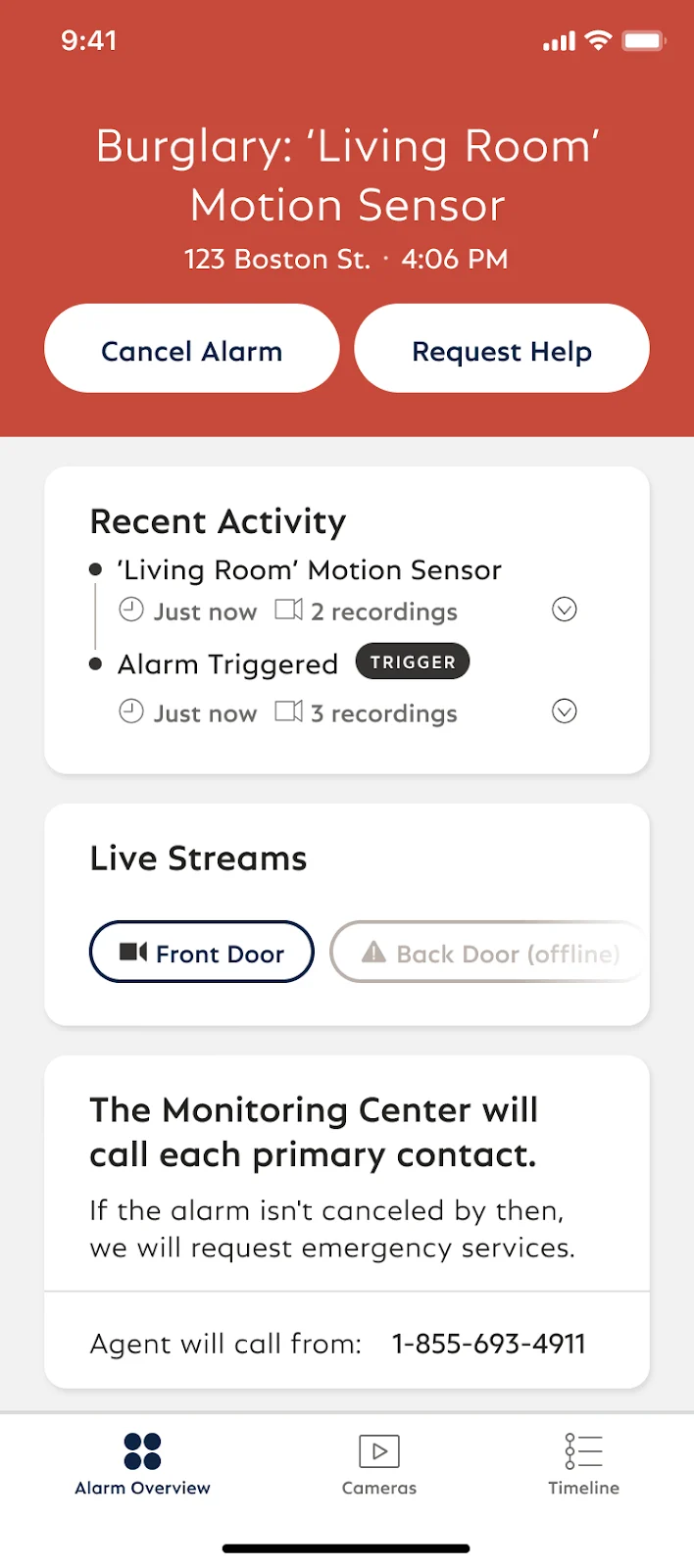
Depending on what type of alarm occurred (Burglary - pictured above, Life Safety with Smoke/CO, or Environmental) you’ll be able to either request help from emergency services or cancel the alarm. Please note, for duress alarms (opens in new tab) we don’t expose alarm details in the app for your safety.
What happens if I don’t use Alarm Screen during an alarm?
Alarm Screen is just one option for you to cancel an alarm or request help. All other options that are currently available to you such as turning off an alarm with the keypad, canceling an alarm or requesting help by text message, and our SimpliSafe® Monitoring agent response will continue to be alternative routes to Alarm Screen. You can learn more about what happens during an alarm (opens in new tab) on our Help Center.
How to Enable Alarm Screen
Users who meet the requirements will automatically see this feature within the SimpliSafe® Mobile App if an alarm occurs.
How to Request Help or Cancel the Alarm via Alarm Screens
When the Alarm Screen pops up on your phone, you’ll see the option to Cancel Alarm or Send Help. Tap on the button for whichever scenario best describes your response to this alarm.
Cancel Alarm
If you choose to cancel the alarm, no further action is needed by you or the team at SimpliSafe®. You will not receive a call from our team to confirm the alarm if you cancel within the grace period.
Request Help
This option will notify the SimpliSafe® monitoring center that you require emergency services at your location, and our monitoring specialists will request dispatch.