
Night Vision Troubleshooting for Cameras
Night Vision is a feature that allows your camera to use infrared technology to see in low-light conditions. The setting for this feature can be found in the SimpliSafe® Mobile App by navigating to camera settings:
Open the SimpliSafe® Mobile App (opens in new tab) on your phone or tablet
Choose My System from the bottom navigation bar
Tap the desired camera
Select Night Vision
The available Night Vision settings depend on the type of camera.
Video Doorbells, Smart Alarm Wireless Indoor Security Camera, SimpliCam® Wired Indoor Security Camera
The Video Doorbell Series 2, Smart Alarm Indoor Camera, Video Doorbell Pro, and SimpliCam® have 3 Night Vision settings: Auto, On, and Off.
Auto: Night Vision turns on and off automatically depending on the amount of light in the space
On: the camera will always revert to using Night Vision, regardless of the amount of light in the space
Off: the camera will only use available light to record, this may result in dark video
Outdoor Cameras
The Outdoor Security Camera Series 2 and Wireless Outdoor Security Camera have 3 Night Vision settings: Off, Standard, and Spotlight.
Off: the camera will only use available light to record, this may result in dark video
Standard: the camera uses its infrared LED to illuminate the area
Spotlight: the camera’s Spotlight will turn on when motion is detected or during live streams to light up objects nearby and record color at night
Troubleshooting Night Vision
If the video quality is poor at night, we recommend trying the following steps:
Verify the camera's Night Vision setting in the SimpliSafe® Mobile App and set it to On or Auto
If you have an Outdoor Camera, verify that its Night Vision setting is set to Standard or Spotlight
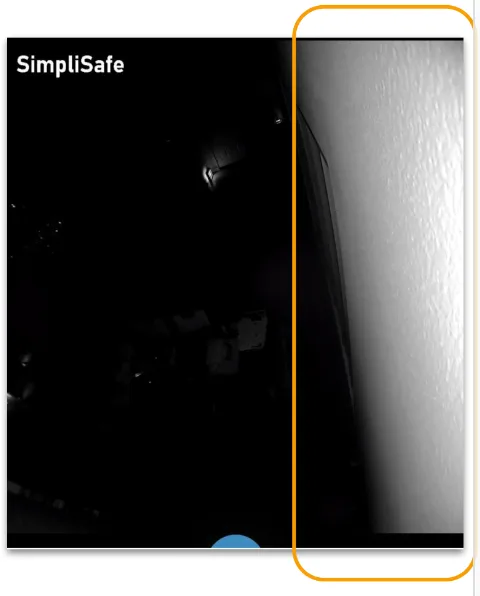
Ensure the camera is not pointed near a wall, ceiling, or a flat surface underneath the device. The camera’s light will bounce back on large surfaces like this and wash out its video, as shown in the image below
If the camera is on a shelf, place the camera near the edge to avoid any obstructions
Make sure the camera is not directly facing a wall or looking out a window
Confirm you've removed the protective film from the face of the camera
Outdoor Camera only: turn on Spotlight to help illuminate areas around the camera
If the above steps do not resolve the issue, we recommend testing the camera in a second location. If the issue disappears, try the steps above again in the camera's desired location.
Reset Your Camera
If the issue persists, try resetting the camera by following the directions below.
Note: Resetting the camera will erase any videos you've captured, as well as all camera settings. Download any camera recordings (opens in new tab) before resetting.
Once you reset the camera, begin the setup process again using your camera's installation guide.
Wireless Outdoor Camera Installation Guide (opens in new tab)
Outdoor Camera Series 2 Installation Guide (opens in new tab)
Smart Alarm Wireless Indoor Security Camera Installation Guide (opens in new tab)
Video Doorbell Series 2 Installation Guide (opens in new tab)
SimpliCam® Wired Indoor Camera Installation Guide (opens in new tab)
Still Need Help?
If you've tried the above troubleshooting steps and your camera's night vision is still not working properly, don't hesitate to contact our support team (opens in new tab) for additional assistance.