
Changes to the Overview Page in the SimpliSafe® Mobile App
The Overview page in the SimpliSafe® Mobile App was updated with a fresh new look to help you stay in the know with the devices on your system.
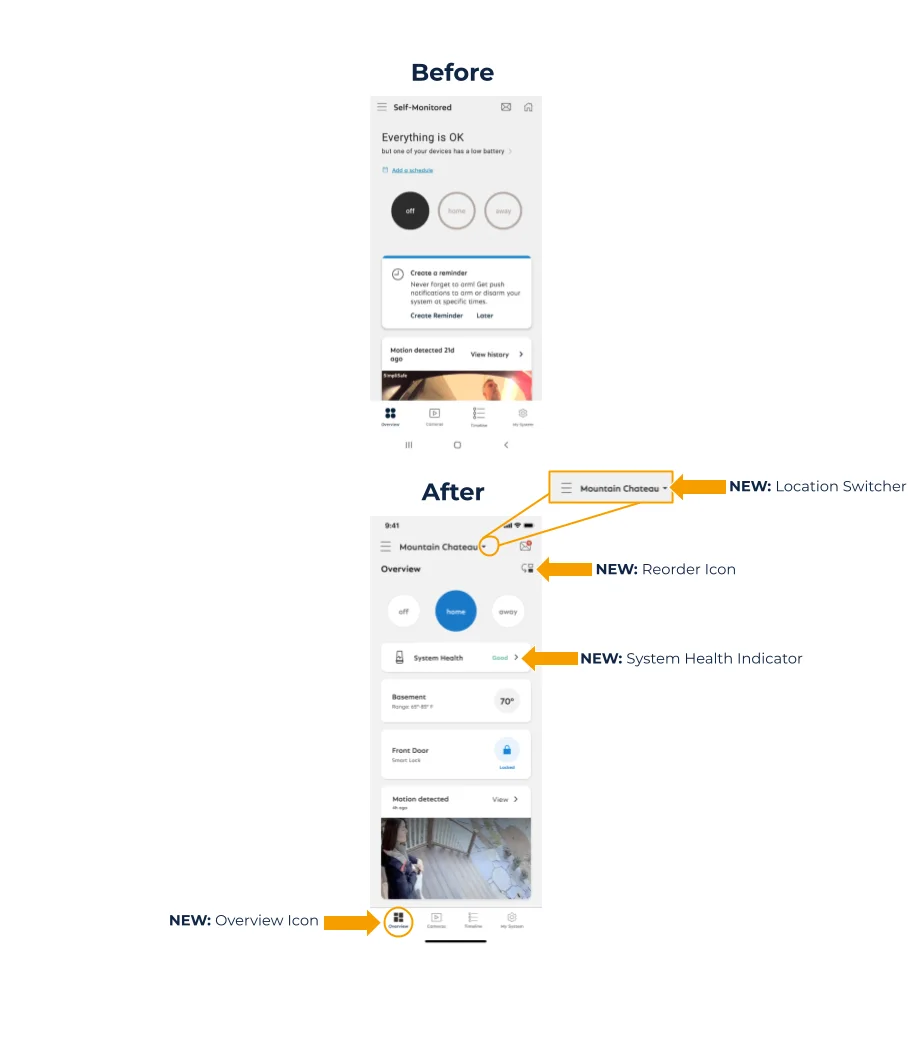
The main changes to the Overview page are as follows:
We have introduced a new System Health indicator located at the top of the screen. This replaces the “Everything is OK” message that used to be displayed to help you review the status of your system at a glance.
If you have multiple locations on your account, the way to toggle between systems has been updated to a dropdown icon instead of the house icon.
We have introduced a reorder icon so you can customize the order of icons displayed on the Overview page.
The process to arm and disarm your system using the app has not changed, but a new update is that the button for the armed state you are in is now larger than the others, making it easier to see whether your system is in Off, Home, or Away mode.
System Health
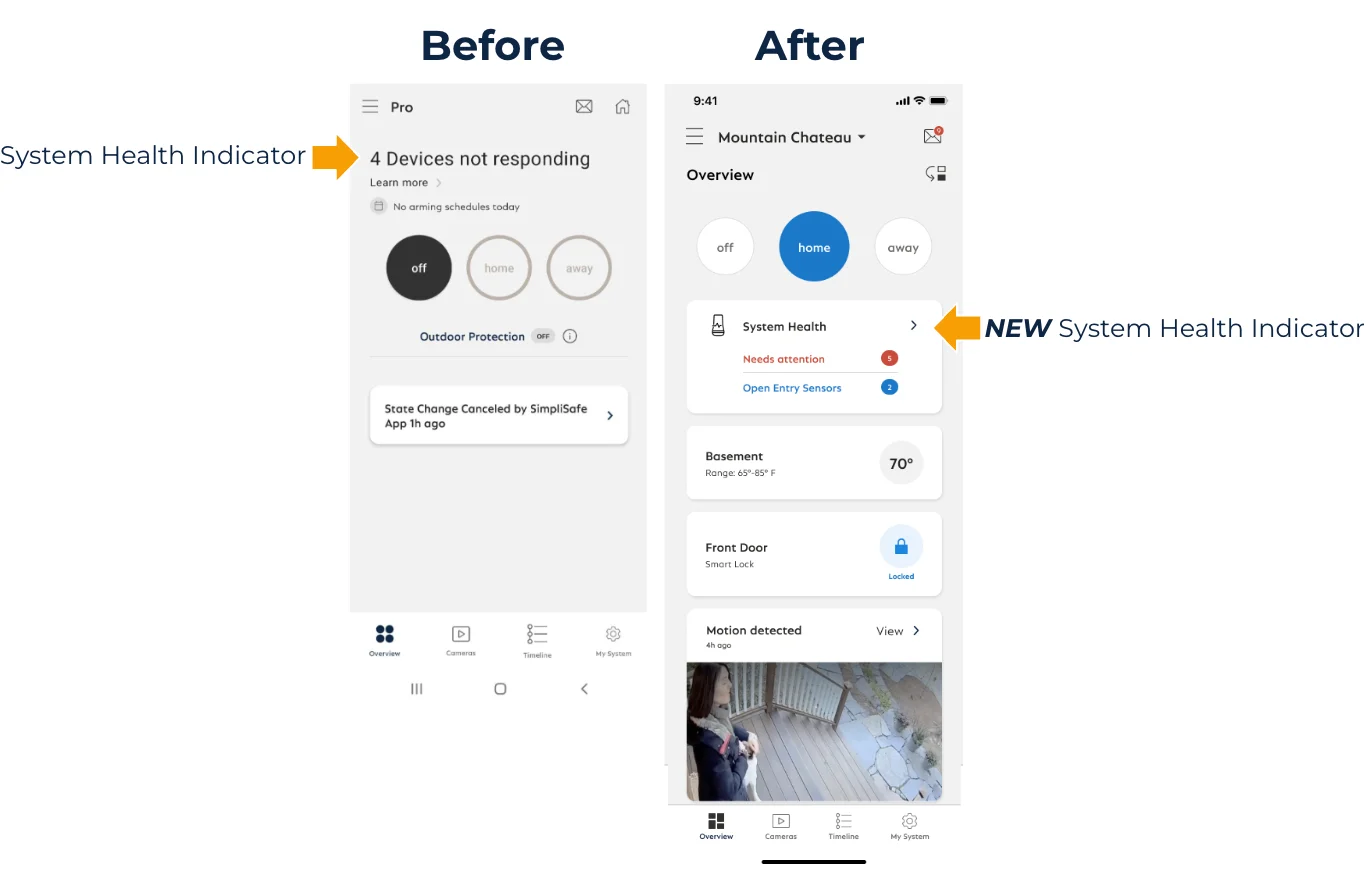
To provide better visibility to any potential errors with your devices, the “Everything is OK” message that used to be at the top of the screen has been replaced with the new System Health indicator. At a glance, this will tell you if any of your devices are experiencing an error that needs to be resolved, or if any Entry Sensors are open. To learn what device is impacted and what the error is, tap on the System Health indicator. This will bring you to the System Status page which outlines the device name and error state.
To get the latest information from your Base Station, drag down on the screen and release it to refresh the page.
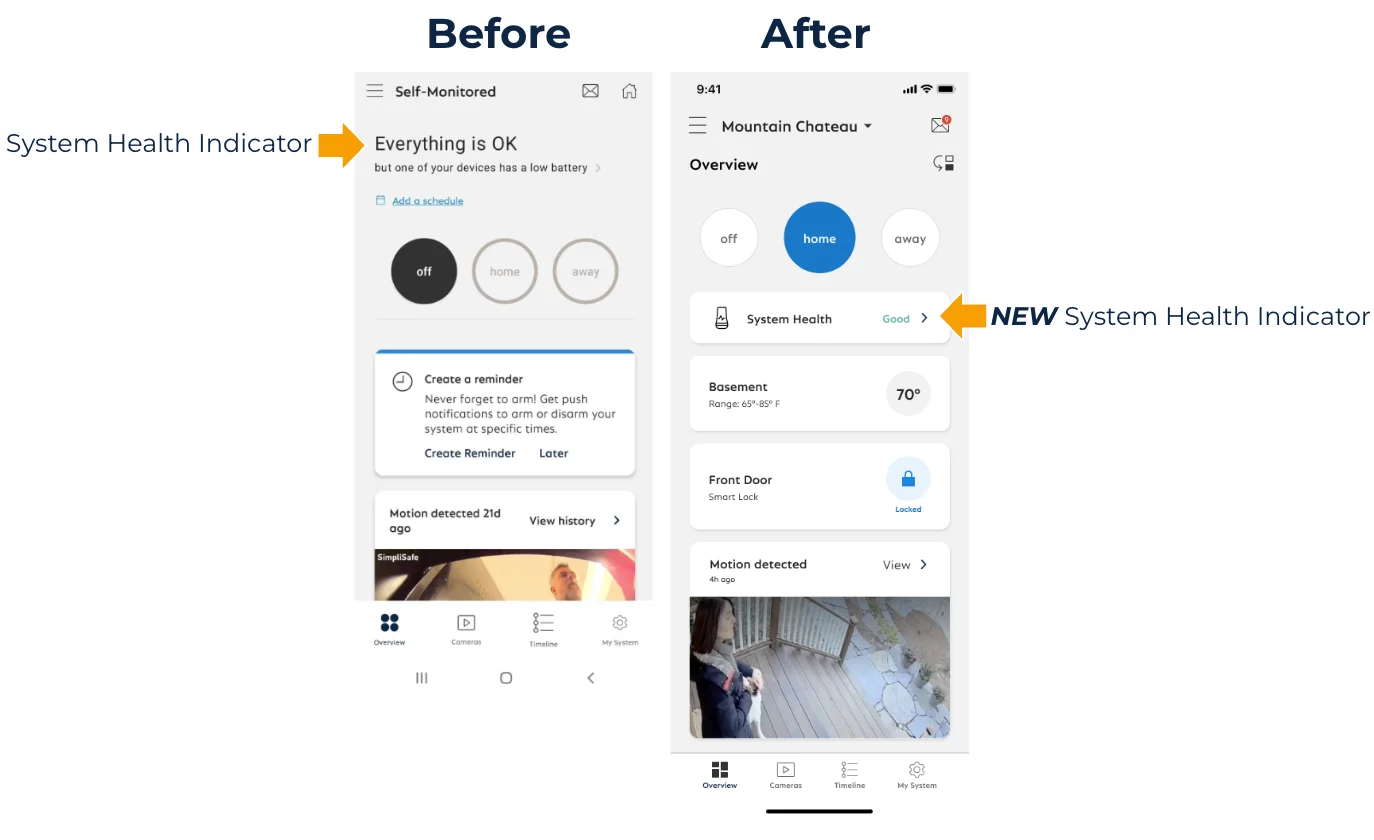
If none of your devices are in an error state, the System Health indicator will simply say “Good,” whereas previously the app would say “Everything is OK.”
Switching Locations
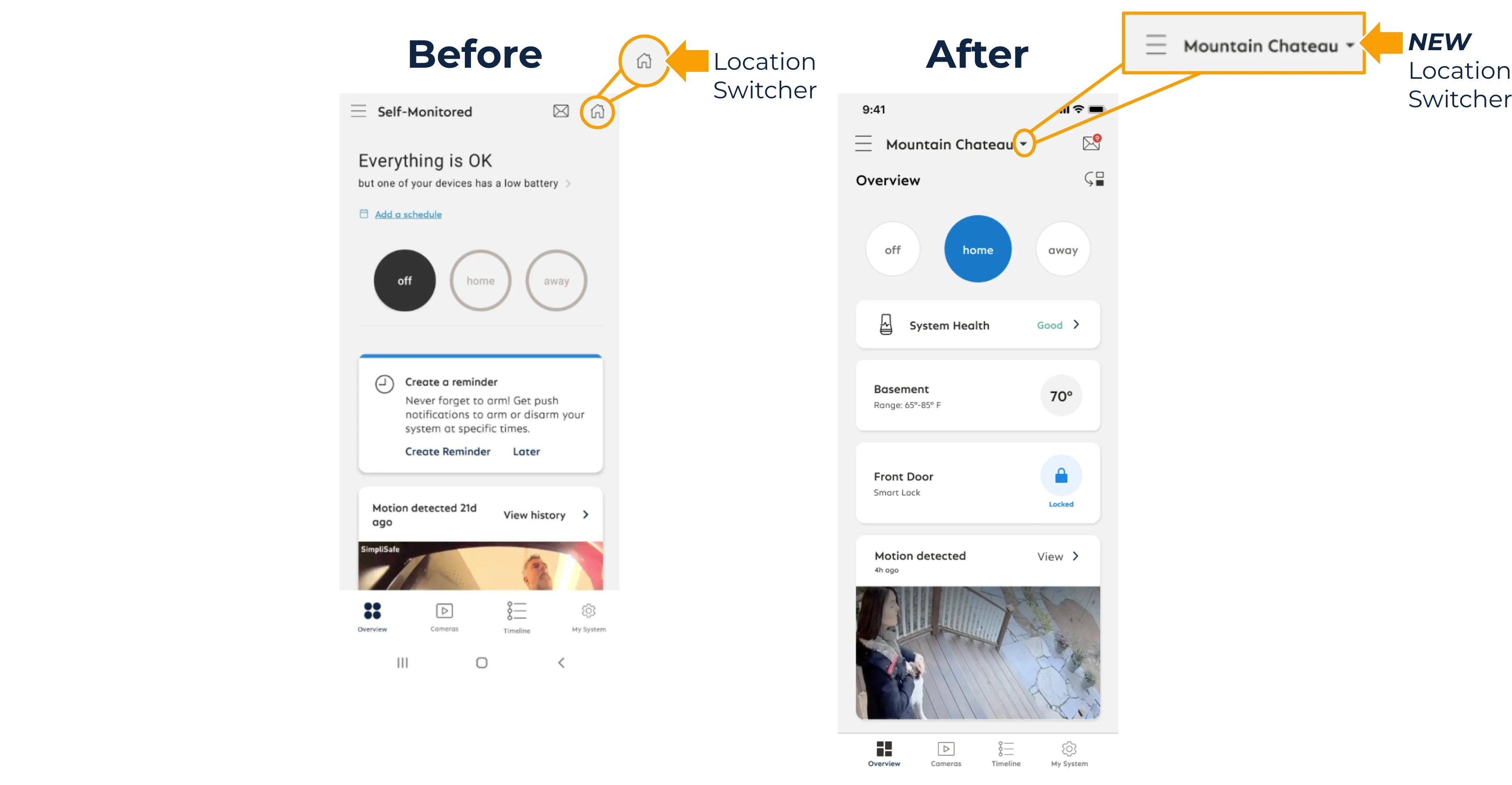
To make it even easier to toggle between system locations in the app, we’ve introduced the new location picker dropdown. This replaces the house icon you would need to tap to switch between locations.
To change locations in the app, tap the dropdown arrow located to the right of your location’s name and then select the system you want to look at.
Customize Your Overview Page
To customize your app experience, we have introduced a reorder icon so you can adjust the order of cards on the Overview page. To reorder the cards:
Tap the reorder icon located on the top right corner of the screen, below the mail icon
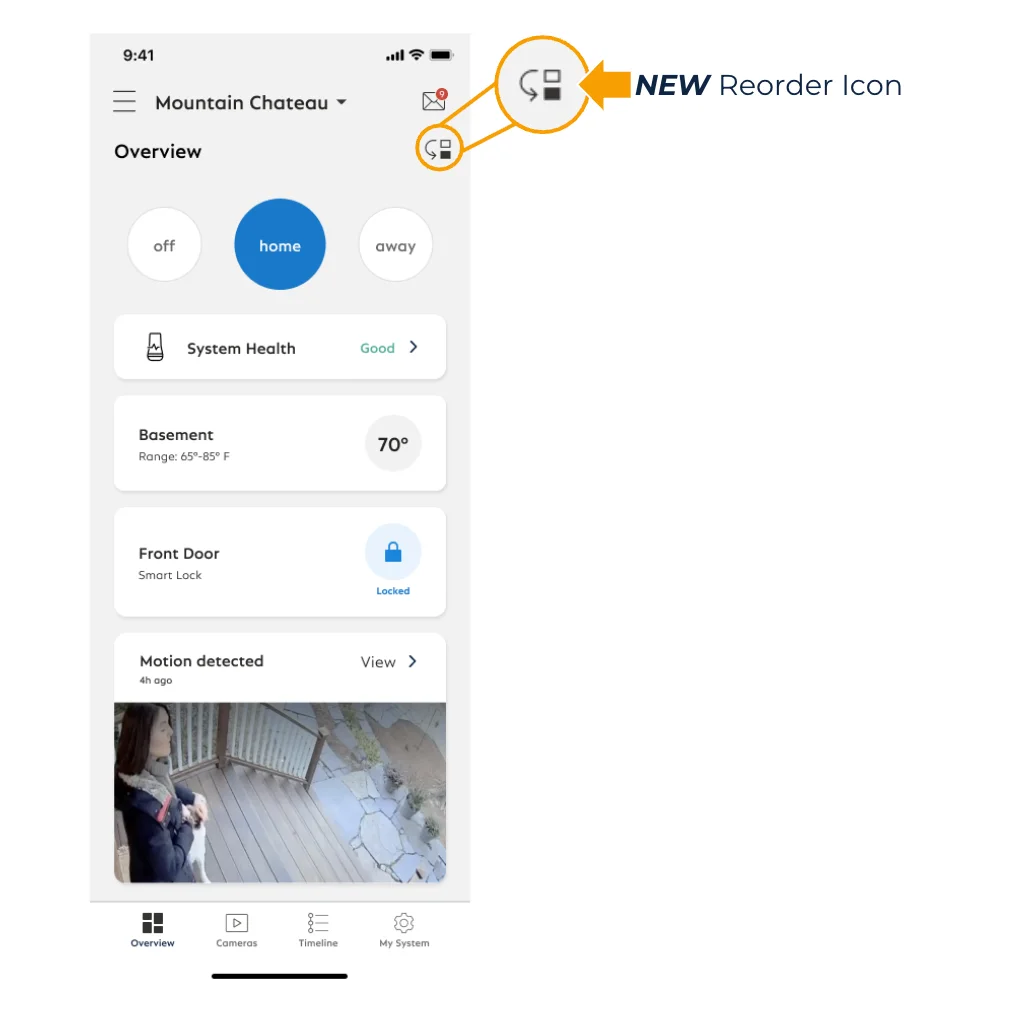
Drag the cards into the order you want
Once you are finished, tap Done to save your updates
If you have multiple locations in your app, you will need to follow these steps for each individual location
To change locations, tap the downward arrow next to your system’s name at the top of the screen and then select another location