Resynchronizing SimpliSafe® Devices
At SimpliSafe®, your safety is our top priority. If you’ve recently received communications from us regarding your Base Station and devices, it’s important that you complete the following steps in this article.
You will need to complete these steps:
Make sure that the firmware for your Outdoor Cameras and Smart Alarm Wireless Indoor Security Cameras is up to date
Make sure that the firmware for your Smart Lock is up to date
Manually reset your Base Station
Update your Base Station's firmware
Resynchronize any of the following devices that are on your system
Extra Siren
Motion Sensor Gen 2
Outdoor Cameras and/or Smart Alarm Wireless Indoor Security Cameras
Smart Lock and/or Smart Lock Series 2
Confirm that any of the following devices on your system are working properly
Extra Siren
Motion Sensor Gen 2
Outdoor Cameras and/or Smart Alarm Wireless Indoor Security Cameras
Smart Lock and/or Smart Lock Series 2
Failure to do this may result in these devices losing communication with your system without your knowledge.
This process may take some time to complete, so please plan accordingly and ensure your Base Station is connected to Wi-Fi (opens in new tab).
Step 1: Update your Outdoor Security Camera Series 2, Wireless Outdoor Security Cameras, and/or Smart Alarm Wireless Indoor Security Cameras
If you do not have any of these cameras on your system, you can jump down to the next step below.
As a first step, you need to ensure that your cameras are running firmware version 1.45+.
You can check your camera’s firmware version at any time in the SimpliSafe® Mobile App by taking the following steps:
Open the SimpliSafe® Mobile App (opens in new tab) on your smartphone or tablet
Select My System from the navigation bar at the bottom of the screen
Select the camera you want to check
Scroll down to the bottom of the screen until you see Basic Info
Next to Software Version, you will see what firmware your camera is running
If your camera is not running firmware 1.45+, you can prompt the update to install by opening the SimpliSafe® Mobile App. After about 5 minutes, take the steps above to confirm that the camera successfully updated.
Step 2: Update your Smart Lock
If you do not have a Smart Lock, you can jump down to the next step below.
You will also need to update your Smart Lock and/or Smart Lock Series 2 to firmware version 1.7.
To update the Smart Lock:
Open the SimpliSafe® Mobile App (opens in new tab) on your phone or tablet
On the Overview tab, there should be a tile that reads “Update Available”
Then, choose Update Now
You’ll need to make sure that Bluetooth is enabled on your phone or tablet - otherwise the update will fail!
Bring your phone within 3 feet of your Smart Lock and wait for it to connect
The Smart Lock will begin to update
This may take up to 10 minutes to complete, so keep your phone nearby!
Once the update is complete, you’ll receive a notice on your phone/tablet
After updating the Smart Lock, you will need to calibrate it.
To calibrate the Smart Lock:
Open the SimpliSafe® Mobile App (opens in new tab) on your phone or tablet
Select My System from the navigation bar on the bottom of the screen
Select your Smart Lock
Choose Calibration, and then Begin to get started
Step 3: Reset your Base Station
Next, you will need to reset the Base Station. To do this:
Unplug the Base Station from power by removing the cable from the bottom of the device
Using a Phillips head screwdriver, remove the screw on the bottom of the Base Station
Twist the bottom cover counter-clockwise to expose the battery compartment
Remove a single battery from the Base Station
Wait 10 seconds, then reinsert the battery
Place the bottom cover back on the Base Station and twist it clockwise, then secure the screw back into place
Re-insert the power cable back into the Base Station and plug it into a working outlet
Step 4: Update your Base Station
After rebooting your Base Station, you will need to update it to firmware 2.21. You must update your system’s firmware with the Keypad by taking the following steps:
Press Menu
Enter your Master PIN
Select System Settings
Wait 2 minutes
After 2 minutes, the Keypad's screen may dim. You can wake up the screen by either waving your hand in front of it or pressing the screen directly
Then, Check for Updates
Your Keypad will either say:
“Updates are available”
“Your system is checking for an update” followed by “Downloading”
If your Keypad says “Updates are available,” press the right side of the Keypad’s screen. The next screen will say “System Update Available.” Select “Install Now” to install the firmware update.
If your Keypad says “Downloading,” please complete the following steps after the download is complete:
Press Menu
Enter your Master PIN
Select System Settings
Then, Check for Updates
Your Keypad’s screen will say “Updates are available.” Follow the prompt on the Keypad to install the firmware update
Step 5: Resynchronize your devices
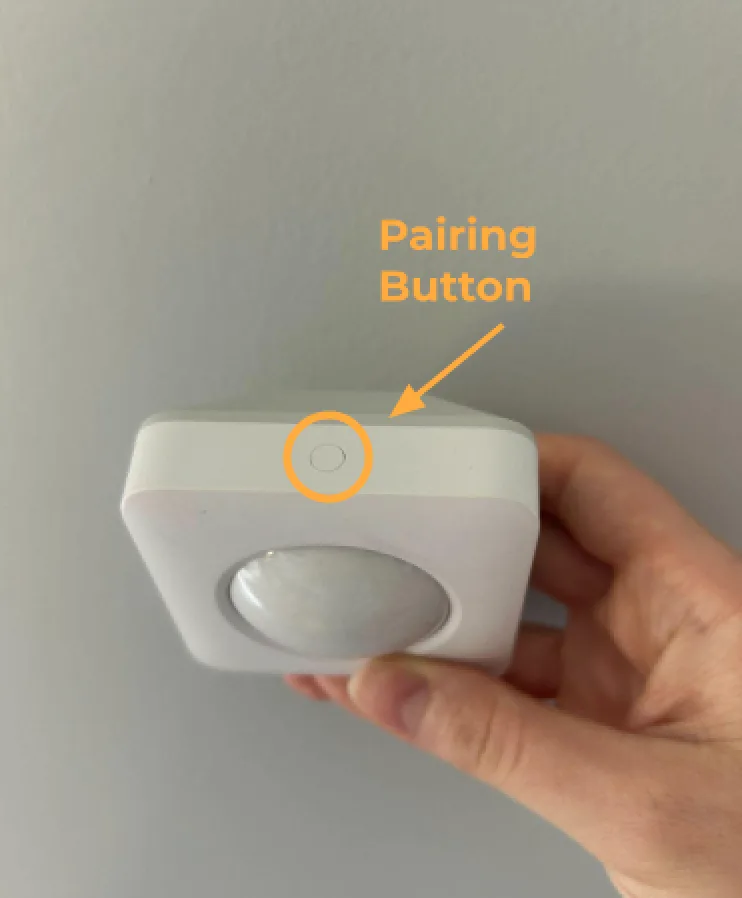
After completing steps 1-4 above, you will need to resynchronize any of the following devices you have paired to your system. Click to expand the collapsible section for the device you wish to learn more about.
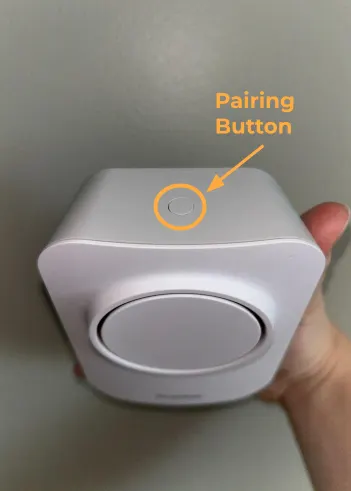
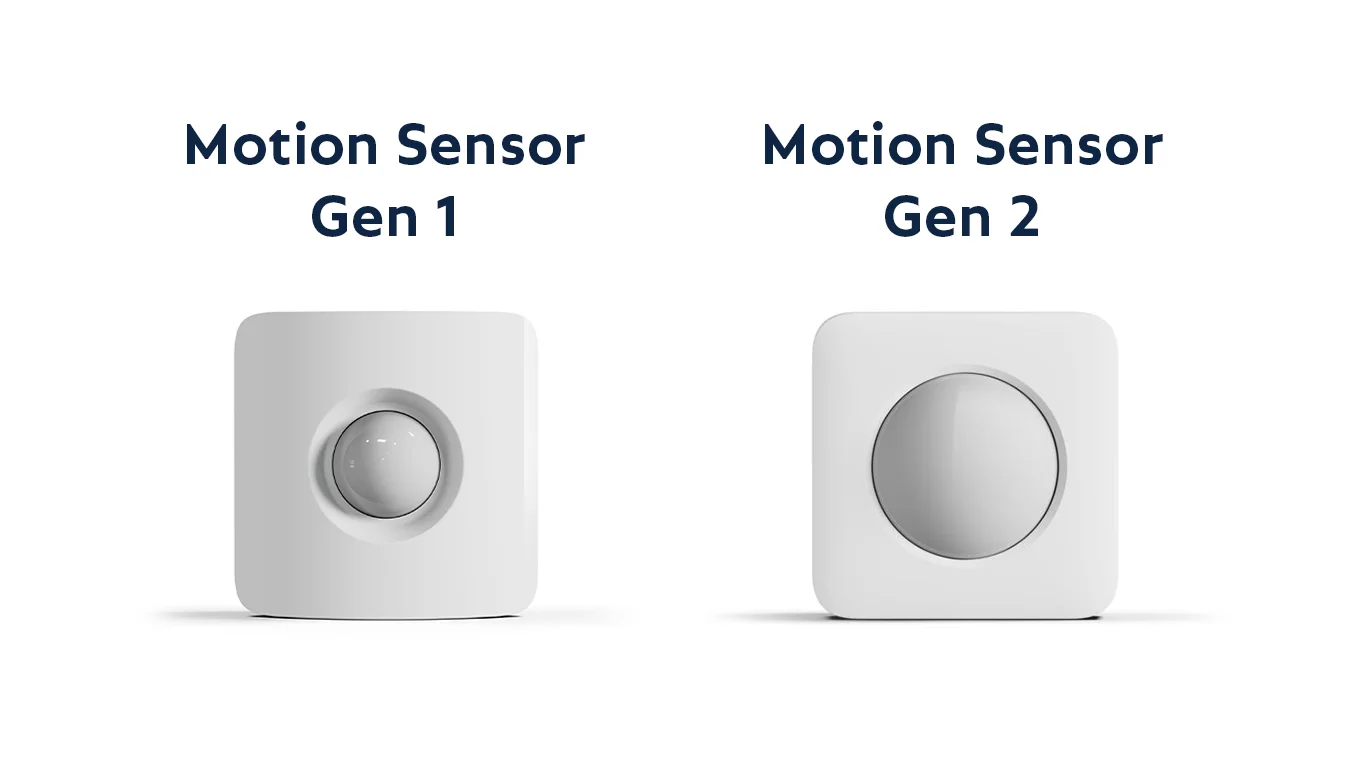
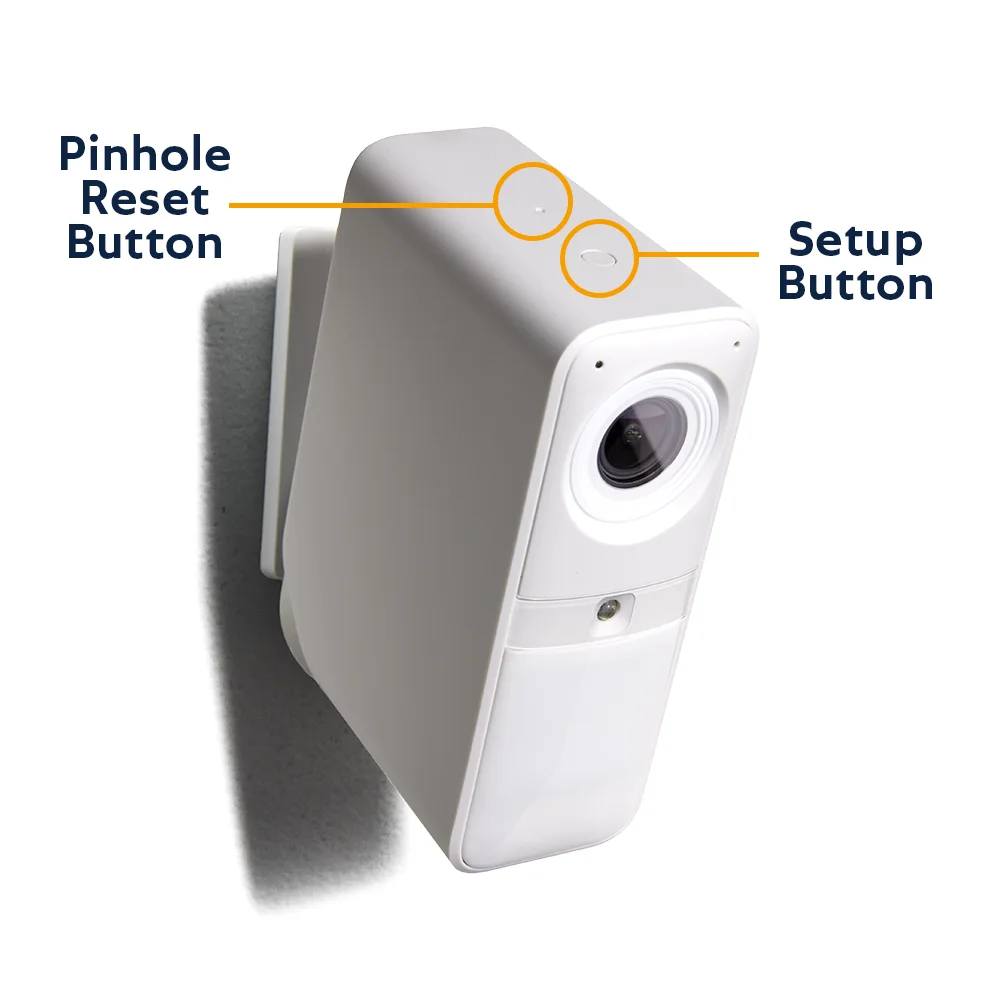
Step 6: Confirm your devices are working properly
As a last step, you will need to check that any of the following devices that you have paired to your system are working properly. Click to expand the collapsible section for the device you wish to learn more about.
If you find that your devices are not working properly during this testing, please contact our Support team (opens in new tab) for additional assistance.