How to Download Recordings From Your Camera
Video clips from SimpliSafe® cameras can be downloaded to your mobile device using the SimpliSafe® Mobile App. Recordings are available with select monitoring plans (opens in new tab).
Please note that if your camera name contains an apostrophe, this may limit your ability to download recordings. We recommend changing your camera’s name (opens in new tab) to exclude the use of an apostrophe before attempting to download any recordings.
How to Download Recordings Using the SimpliSafe® App:
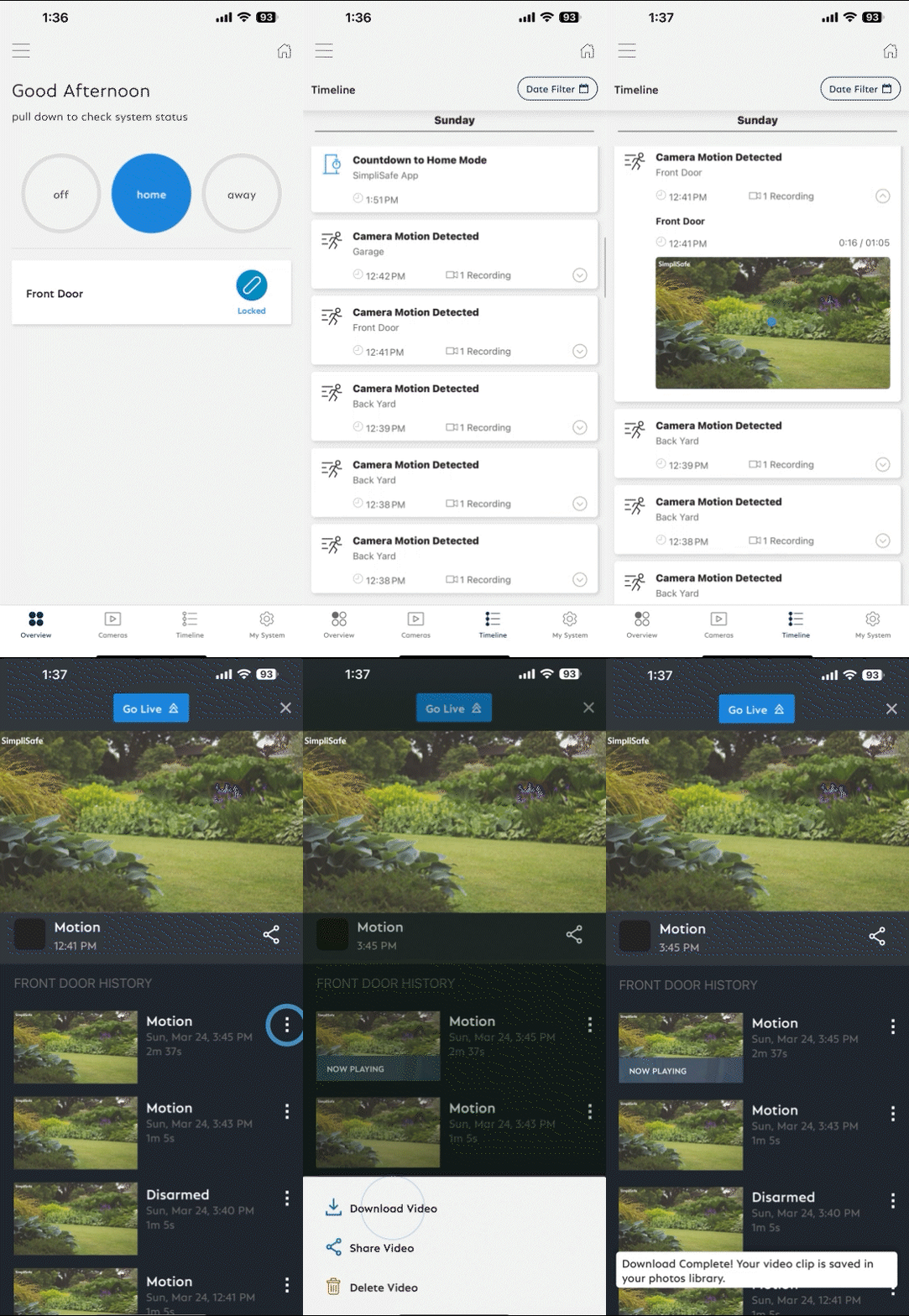
In the SimpliSafe® App (opens in new tab), tap on Timeline (opens in new tab) from the bottom navigation bar
Swipe up and down through the Timeline and find the event whose clip you wish to download
Tap on the event and then tap on the video preview within the event
Tap the three-dot icon next to the recording and then choose Download Video
The clip will be saved to your phone
To access saved videos, go to your phone’s camera roll
How to Download Recordings Using the SimpliSafe® Online Account
Log into the SimpliSafe® Online Account (opens in new tab) using the browser of your choice
Select Timeline from the navigation menu on the left side of the screen
If you do not see the navigation menu, click the three-bar icon on the top left corner of the screen to reveal it
Scroll through the Timeline and find the event with the video clip you wish to download
Tap on the event and then tap on the video on the right side of the screen
Tap the download icon on the bottom right side of the video player
The clip will be saved to your computer
To access saved videos, go to your downloaded files in your computer
Is a Timestamp Included?
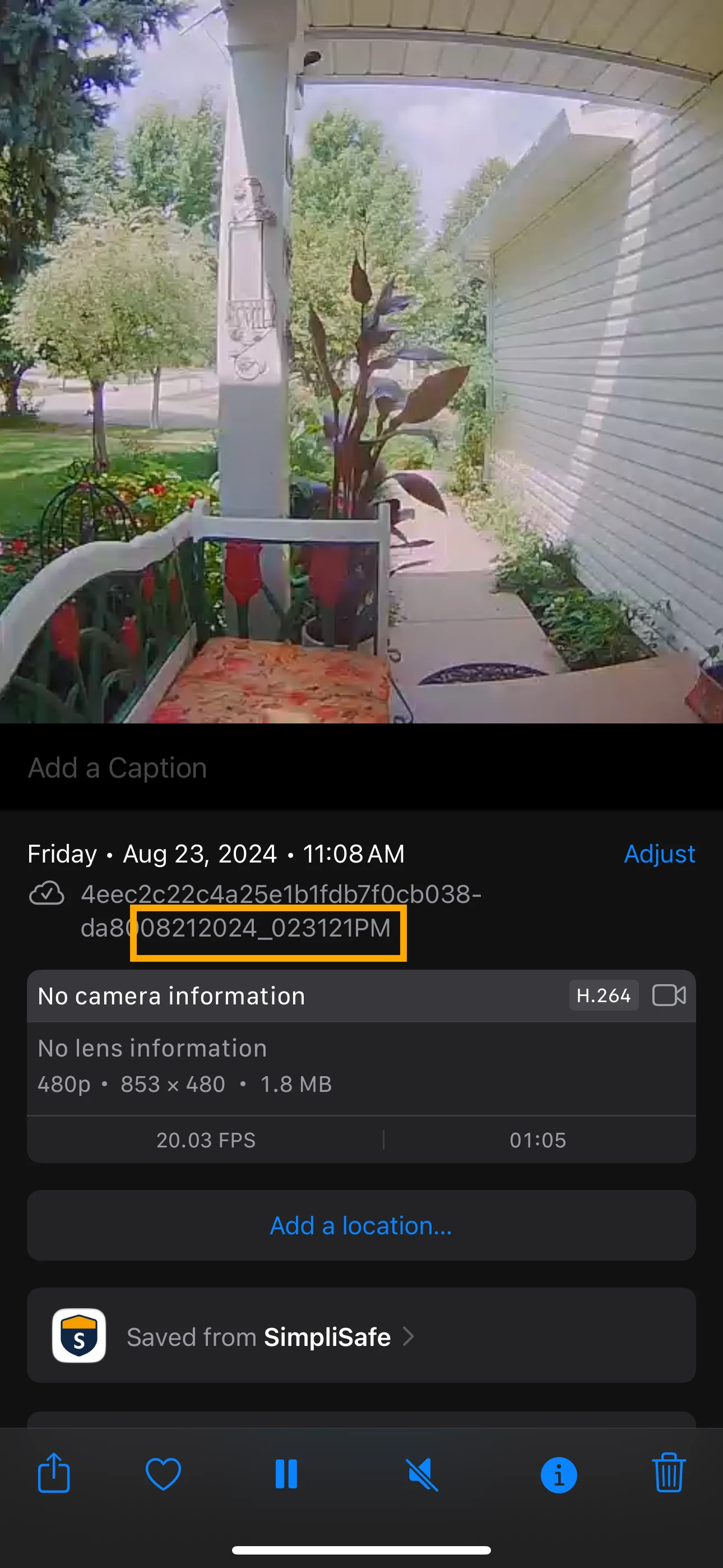
When you download a video from your timeline, the date and time that the recording was filmed is found at the end of the file name.
To find the timestamp, take the following steps:
Open your camera roll
Select the recording you downloaded
Tap the i icon on the bottom of the screen to display the video’s file name
This step may vary depending on your mobile device
At the end of the file name, you will see the date and time the recording was filmed
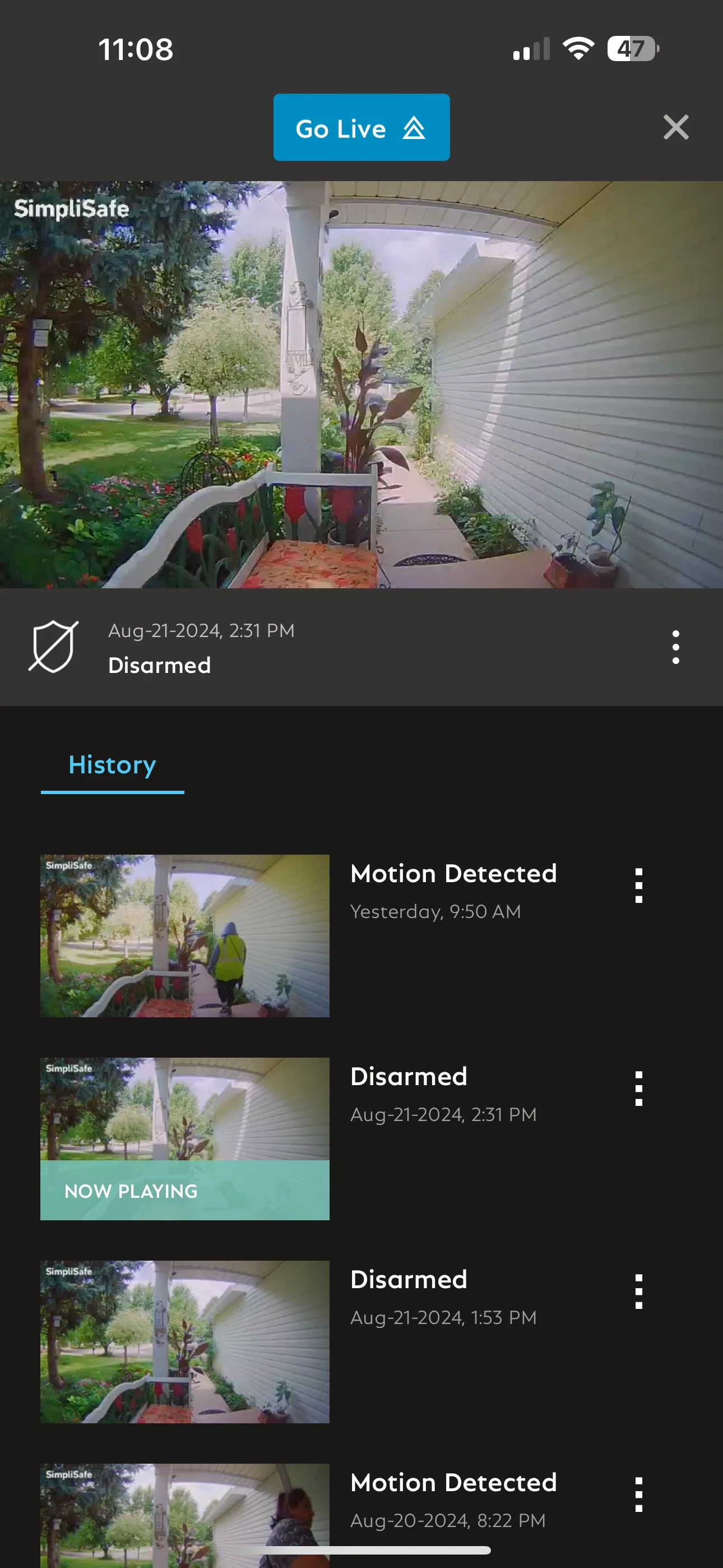
Note: the time stamp will be written in numbers, displayed as MM/DD/YYY_HH/MM/SS. So for a recording filmed on August 21, 2024 at 2:31:21 PM, the timestamp will be displayed as: 08212024_023121PM.