
How Do I Set Up Push Notifications On My Smartphone?
For the SimpliSafe® mobile app to function properly, your smartphone must be on either iOS 17.0 or higher OR Android 12 or higher. You can make sure your phone’s software is up to date in your smartphone’s settings.
What Are The Different Types of Push Notifications?
There are three main push notifications you can receive: Alarm, Activity, and Warning. See the table below to learn more about the different notifications.
Notification Type | The Events You Will Receive A Notification For |
Alarm | - An alarm has been triggered - You system was put into Test Mode (opens in new tab) |
System Status* | - When the system has been armed or disarmed - A Smart Lock has been locked or unlocked - A sensor triggered a Secret Alert (opens in new tab) |
System Health | - A device’s battery is low - The Base Station reported a power outage, or that power has been restored - A sensor isn’t responding or has been restored - The Base Station has lost or restored its Wi-Fi connection - Wireless interference has been detected |
*Please note that Secret Alerts and Activity notifications are only available to users subscribed to residential or business monitoring plan such as Pro Plus, Pro, Core and Self-Monitoring (opens in new tab).
You can also receive push notifications when your cameras detect motion.
How To Turn On System Push Notifications
In the SimpliSafe® Mobile App (opens in new tab), navigate to the My System gear on the bottom of the screen
Tap Notification Settings (opens in new tab) and the location you want alerts for
Choose Push Notifications. Here, you can enable or disable Alarm, System Status, and System Health notifications
Once you are done, be sure to tap Save in the top right corner
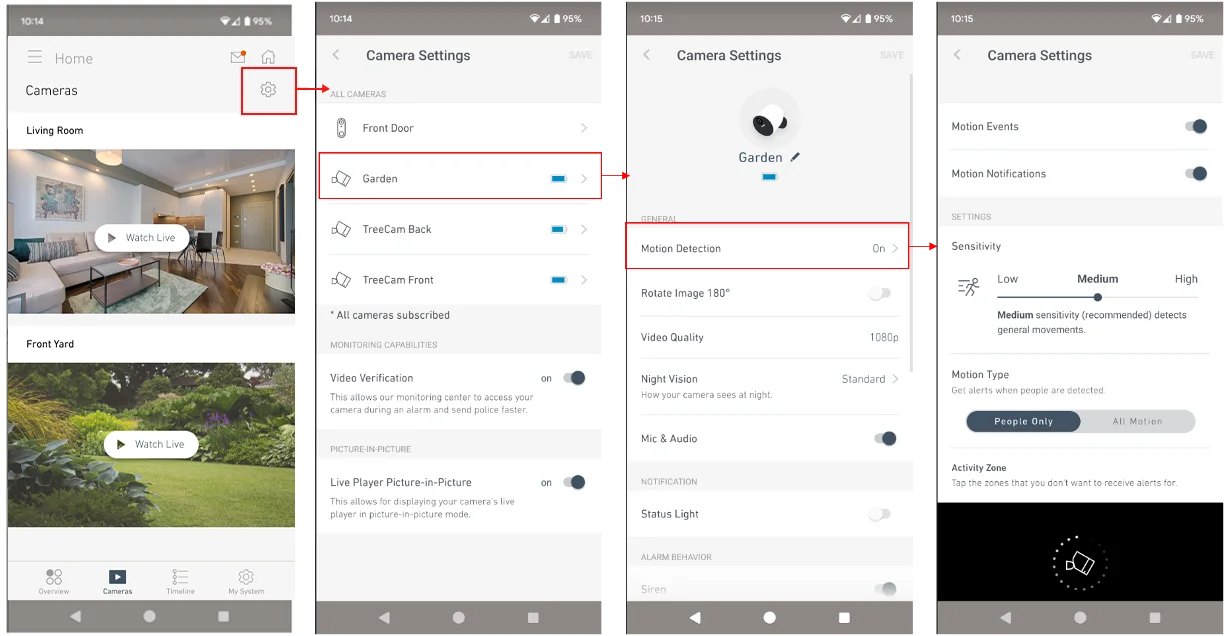
How To Turn On Camera Notifications
Using the SimpliSafe® Mobile App (opens in new tab) on your phone or tablet
Choose My System from the bottom navigation bar
Tap on the camera you want to manage notifications for
Select Motion Detection
Enable Motion Events and Motion Notifications to be notified when your camera detects motion
Need a break from camera notifications? When you enable Snooze Notifications, you’ll be able to temporarily pause receiving notifications from your camera(s) for a set amount of time. Visit the Snooze Notifications For SimpliSafe Cameras article (opens in new tab) to learn more.
How to Allow SimpliSafe® to Send Push Notifications to Your Smartphone
On iOS:
Go to “Settings”.
Click “Notifications”.
Find the SimpliSafe® app, and make sure notifications are turned on.
On Android*:
Tap Apps > Settings > MORE.
Tap Application Manager > DOWNLOADED.
Tap on the SimpliSafe® icon.
Select or clear the check box next to “Show Notifications” to enable or disable push notifications.
*Note: enabling Android Private Space for the SimpliSafe® Mobile App can prevent you from receiving push notifications. If you want to receive push notifications about your SimpliSafe® system, do not enable Android Private Space.