
The Video Doorbell Series 2 Is Not Detecting Motion
Missing motion events on your Video Doorbell Series 2 are usually caused by a Sensitivity setting that's too low for the distance, the doorbell's orientation, something blocking its view, a Motion Detection setting that's turned off, or a plan that doesn't include the detection feature you're trying to use.
Turn On Motion Detection
Your Video Doorbell won't record or notify you of activity unless Motion Detection is turned on for at least one arming state.
Open the SimpliSafe® Mobile App (opens in new tab) on your phone or tablet
Select My System from the navigation menu at the bottom of the screen
Select Camera Settings
Choose your Video Doorbell from the list of available devices
Select the arming state you want to adjust under Camera Behavior
Toggle Motion Detection on
Tap Save
Check the Doorbell’s Orientation
Some motion detection technologies are less effective when a doorbell is mounted upside down, which can reduce detection range or cause motion events to be missed.
Confirm your Video Doorbell is mounted right-side up
If it's mounted upside down, remount the Video Doorbell in the correct orientation (opens in new tab)
Clear the Doorbell's View
Anything blocking the camera's field of view can prevent motion from being detected.
Check for and remove the following obstructions:
Hanging plants or decorations
Furniture or trash bins
Parcel boxes
Rain or snow buildup
Spiderwebs
Confirm motion detection improves after clearing or repositioning away from the obstruction.
Adjust Sensitivity and Range
Sensitivity controls how far your Video Doorbell can detect movement.
Low: Up to 15 ft (partial detection possible at 20 ft)
Medium: Up to 25 ft
High: Up to 25 ft
Follow these steps to adjust the Video Doorbell’s Sensitivity:
Open the SimpliSafe® Mobile App (opens in new tab) on your phone or tablet
Select My System from the navigation menu at the bottom of the screen
Select Camera Settings
Choose your Video Doorbell from the list of available devices
Navigate to Motion Detection and increase the Video Doorbell’s Sensitivity setting to Medium or High
Tap Save
Note: If your camera is enrolled in SimpliSafe® Active Guard Outdoor Protection, Sensitivity is locked and can't be changed while Active Guard Outdoor Protection is active.
Adjust Activity Zones
Activity Zones limit motion detection to specific parts of your Video Doorbell's view. If a zone excludes an area you care about, you'll miss motion there.
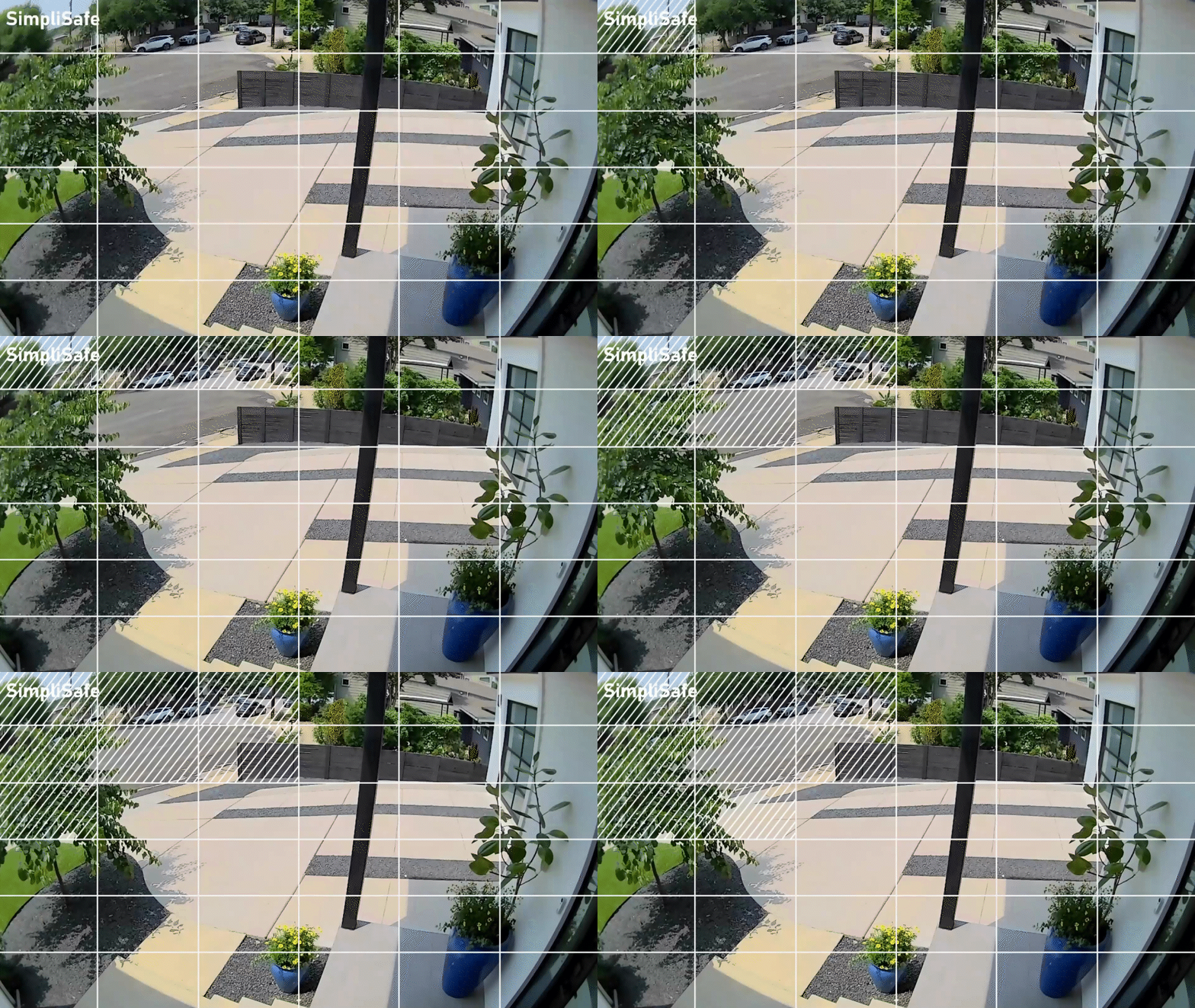
Open the SimpliSafe® Mobile App (opens in new tab) on your phone or tablet
Select My System from the navigation menu at the bottom of the screen
Select Camera Settings
Choose your Video Doorbell from the list of available devices
Select Motion Detection, then scroll to Activity Zones
Confirm you have only selected areas within the camera’s view where you would like to exclude motion detection
Confirm Push Notifications are Turned On
Push notifications aren't sent when:
The mobile app is open or running in the background
You're actively livestreaming (a "Camera Motion Detected" banner appears in the app instead)
You're logged out of the app
A Quiet Period is active (one motion push notification per minute, across all cameras)
Follow these steps to check your notification settings:
Confirm you're logged into the mobile app on your device
Open Camera Settings for your Video Doorbell and check Push Notification under Settings. The options are Always on, Only when unmonitored, or Off
Note: The Push Notification setting is only available if your camera is enrolled in Active Guard Outdoor Protection.
If you're still not receiving push notifications despite being eligible, see push notifications resource.
Check Event Type and Plan Settings
The Video Doorbell has three separate event type toggles under Motion Detection: People, Packages, and Motion. If a toggle is off, you won't get alerts or recordings for that event type.
Open Camera Settings for your Video Doorbell
Under Motion Detection, confirm which Event Type toggles are turned on
If your camera is enrolled in Active Guard Outdoor Protection, Event Type is locked to People and Packages and can't be changed while Active Guard Outdoor Protection is active
If Packages is grayed out, check your current monitoring plan. Package Detection is available with the residential and business Pro Plus, Pro, Core, and Self Monitoring with Camera Recordings monitoring plans (opens in new tab)
Check Night Vision
Open Camera Settings for your Video Doorbell
Under Settings, locate Night Vision. The options are Auto, On, and Off
If the setting is Off, change it to Auto, then tap Save
If the setting is already Auto and you're still not detecting motion at night, change it to On, then tap Save
Power Cycle the Video Doorbell
Power cycling your Video Doorbell can help clear it from an unresponsive state.
Remove the Video Doorbell From Your System
Open the SimpliSafe® Mobile App on your smartphone or tablet
Select My System from the navigation bar at the bottom of the screen
Select Camera Settings
Choose your Video Doorbell
Scroll to the bottom of the screen and select Remove Device
Power Cycle the Video Doorbell
Locate the circuit breaker that controls power to your Video Doorbell
If you don't know which breaker controls your doorbell, turn off each switch one at a time and press the doorbell to confirm which one cuts power
Turn off the breaker and wait 30 seconds
Turn the breaker back on
After the reset, the LED Ring on the front of the Video Doorbell will flash white, indicating the device is powering up
Reinstall the Video Doorbell to Your System
Confirm you're logged into the correct account and location in the SimpliSafe® Mobile App
Tap the three-bar menu in the upper left corner and select Add Device or Camera
Select Cameras, then Video Doorbell Series 2
Follow the on-screen instructions to finish setup
Still Need Help?
If you've tried the above troubleshooting steps and your Video Doorbell is still missing motion events, don't hesitate to contact our Support team (opens in new tab) for additional assistance.