
Too Many Motion Alerts From the Video Doorbell Series 2
Excessive motion events on your Video Doorbell Series 2 are usually caused by something in view triggering frequent alerts, a Sensitivity setting that's too high for your environment, or event type settings that are broader than you need. Work through the sections below to cut down on unwanted alerts.
Clear the Doorbell's View
Check whether the doorbell is pointed at objects that could trigger frequent motion events, such as:
Hanging plants or decorations
Furniture or trash bins
Parcel boxes
Rain or snow buildup
Spiderwebs
Adjust Sensitivity
Sensitivity controls how far your Video Doorbell can detect movement. If you're getting alerts for things far from your door, like cars passing on the street, lowering that setting narrows the detection area and cuts down on the alerts you don't want.
Open the SimpliSafe® Mobile App (opens in new tab) on your phone or tablet
Select My System from the navigation menu at the bottom of the screen
Select Camera Settings
Choose your Video Doorbell
Select Motion Detection
Decrease Sensitivity from High to Medium, or Medium to Low
Tap Save
Note: If your camera is enrolled in SimpliSafe® Active Guard Outdoor Protection, Sensitivity is locked and can't be changed while Active Guard Outdoor Protection is active.
Adjust Activity Zones
Activity Zones limit motion detection to specific areas by blocking out parts of your Video Doorbell's view that generate unwanted alerts.
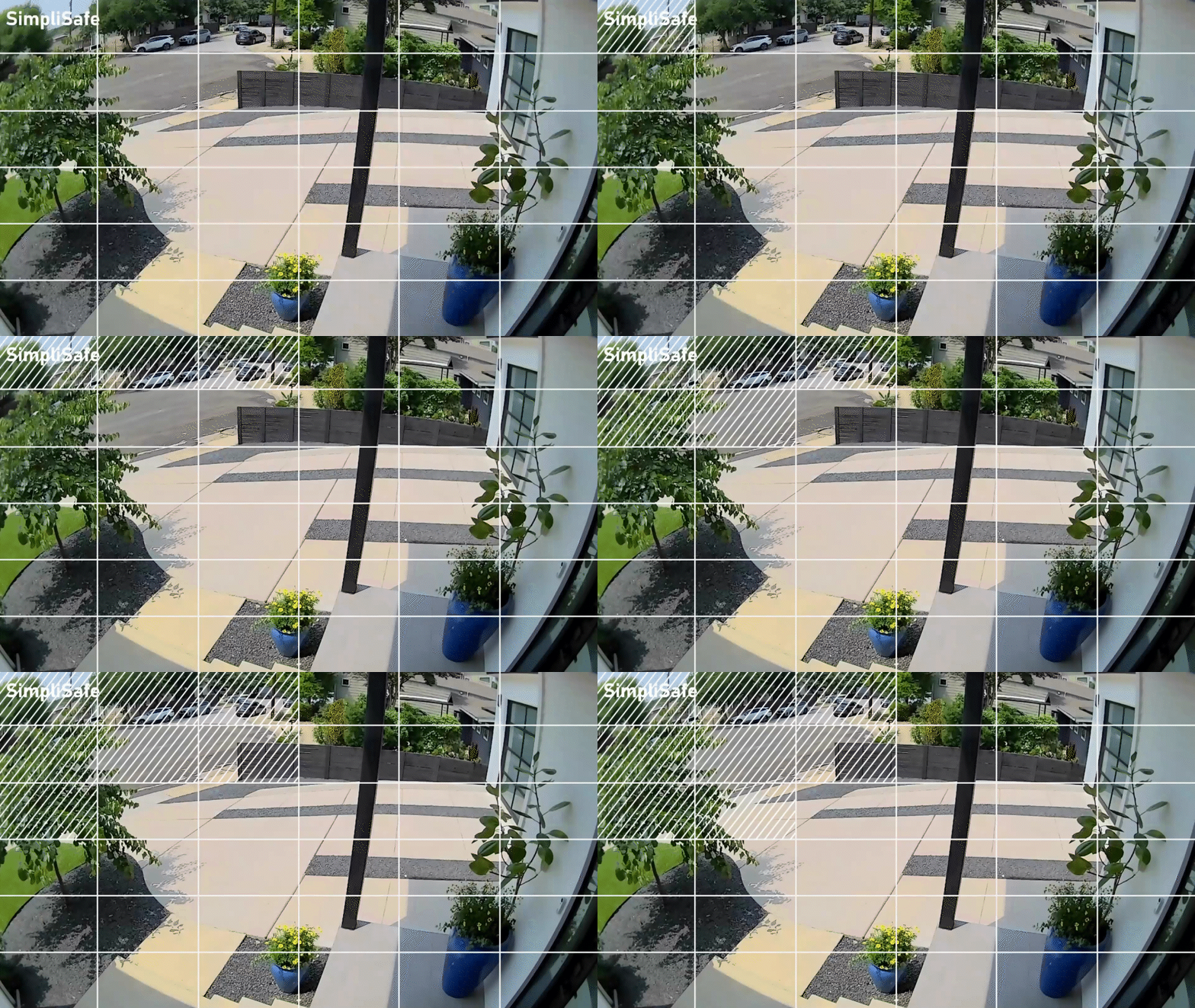
Open the SimpliSafe® Mobile App (opens in new tab) on your phone or tablet
Select My System from the navigation menu at the bottom of the screen
Select Camera Settings
Choose your Video Doorbell
Select Activity Zones
Adjust the zones to exclude the areas causing excessive events
Check Event Type Settings
The Video Doorbell has 3 Event Types for motion detection: People*, Packages*, and Motion. If the Video Doorbell is detecting too much motion, you may customize these Event Type settings to reduce the amount of motion the camera registers.
Open the SimpliSafe® Mobile App (opens in new tab) on your phone or tablet
Select My System from the navigation menu at the bottom of the screen
Select Camera Settings
Choose your Video Doorbell
Under Motion Detection, confirm which Event Type toggles are enabled. The options are People, Packages, and Motion
If you want to receive alerts only for people, confirm that People is on and Motion is off
Keep in mind that toggling off Motion also stops alerts for vehicles, animals, and weather-related movement
Note: If your camera is enrolled in Active Guard Outdoor Protection, Event Type is locked to People and Packages and can't be changed while Active Guard Outdoor Protection is active.
*People and Package Detection are available as part of the residential and business Pro Plus, Pro, Core, and Self-Monitoring with Camera Recording monitoring plans (opens in new tab).
Still Need Help?
If you've tried the above troubleshooting steps and your Video Doorbell is still detecting too much motion, don't hesitate to contact our Support team (opens in new tab) for additional assistance.