
Too Many Motion Alerts From the Outdoor Security Camera Series 2
If you find that your Outdoor Security Camera Series 2 is detecting motion and you’re receiving too many notifications or alerts, there are some recommended placement and settings changes you can make to reduce the number of notifications.
Adjust the Placement of the Camera
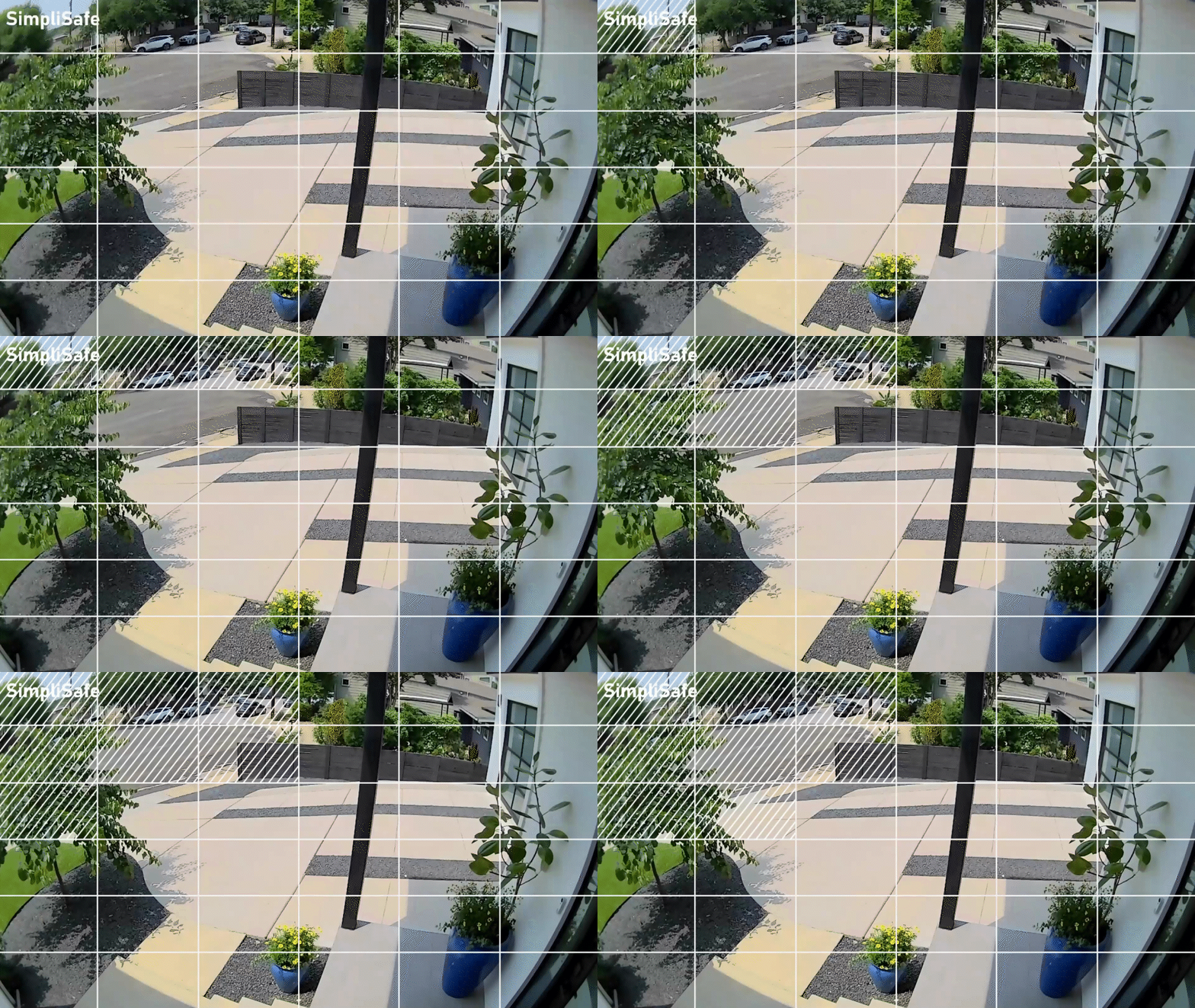
If your Outdoor Camera Series 2 is facing a high-traffic area like a busy street or sidewalk, we recommend angling the camera down to remove this area from its field of view, as seen in the image below.
Change the Camera’s Settings
If you cannot change the angle of the Outdoor Camera, there are settings you can adjust in the SimpliSafe® Mobile App to minimize the amount of motion it detects.
Sensitivity
By default, the Outdoor Camera’s sensitivity is set to High, but you can adjust this setting to Medium or Low to limit the number of motion events you receive.
You can adjust the sensitivity of your Outdoor Camera by taking the following steps:
SimpliSafe® Mobile App:
Open up the SimpliSafe® Mobile App (opens in new tab) on your mobile device or tablet
Choose My System from the bottom navigation bar
Select Camera Settings (opens in new tab) from the list of menu options
Choose the Outdoor Camera you’d like to adjust
Tap Motion Detection
Under Sensitivity, move the slider to Low
Tap Save in the top right corner to save this change
SimpliSafe® Online Account:
Log into your SimpliSafe® Online Account (opens in new tab) using the browser of your choice from a computer
If you manage multiple properties, choose the location you wish to update from the list by clicking on the Base Station Serial Number or Property Address
Select Devices from the navigation bar on the left side of the screen
Select the camera you want to update
A pop up menu will appear on the right hand side of the screen
Scroll down to Motion Sensitivity and move the slider to Low
When you are done, click Save Changes on the bottom of the pop up to save your selections
Motion Detection Type
The Outdoor Camera has two motion detection options: All Motion and People Only. When set to All Motion, the camera will record any motion it senses - which may cause excess motion events. However, if the camera is set to People Only it will only respond to people-shaped objects.
Note: When your Outdoor Camera Series 2 is enrolled in SimpliSafe® Active Guard Outdoor Protection, you will have different Motion Detection setting options available.
To minimize the amount of motion your Outdoor Camera detects, you can change its motion setting to People Only by following these steps:
Open up the SimpliSafe® Mobile App (opens in new tab) on your mobile device or tablet
Select My System from the bottom navigation bar
Tap the Outdoor Camera you’d like to adjust
Select Motion Detection
Under Motion Type, select People Only
Tap Save in the top right corner to save this change
Activtiy Zones
By setting up Activity Zones (opens in new tab), you can block unnecessary sources of motion from the camera’s view, like tree branches, sidewalks, or busy streets.
To create Activity Zones, take the following steps:
Open up the SimpliSafe® Mobile App (opens in new tab) on your mobile device or tablet
Choose My System from the bottom navigation bar
Tap the Outdoor Camera you’d like to adjust
Choose Motion Detection
Under Activity Zone, tap the boxes in the frame where you do not want your camera to record
Tap SAVE in the top right corner to save your selections
Additional Troubleshooting
If you’re still getting too many motion alerts when your camera is set to People Only mode, we recommend trying the following tricks:
Change your camera’s motion detection setting to All Motion
Turn your camera’s sensitivity down to Medium or Low
Set up Activity Zones (opens in new tab) around the perimeter of the camera’s field of view