
Enrolling Cameras Into SimpliSafe® Active Guard Outdoor Protection
Once you have signed up for SimpliSafe® Active Guard Outdoor Protection as your new monthly subscription, there are a few steps you need to take to enable the service for your property.
There are two ways to enroll your cameras in SimpliSafe® Active Guard Outdoor Protection. The first is during the setup of your Outdoor Security Camera Series 2 or Video Doorbell Series 2. The second is to enroll after setup using either the tile on the Overview tab or under Camera Settings.
Before proceeding, ensure that you are ready for SimpliSafe® Active Guard Outdoor Protection and meet the requirements for service. Specifically, you can only have 3 cameras total enrolled. One of them can be a Video Doorbell Pro so long as you also have at least one Outdoor Camera Series 2 or Video Doorbell Series 2 enrolled. You will also need to have your Outdoor Security Camera Series 2 connected to a continuous power source using the outdoor power cable (opens in new tab). If you do not have the Outdoor Camera Series 2 connected to power using the outdoor power cable, its enrollment in SimpliSafe® Active Guard Outdoor Protection will fail.
Enrolling During Camera Installation
After you have installed your Outdoor Security Camera Series 2 or Video Doorbell Series 2, the app will prompt you to begin the enrollment process for your camera into SimpliSafe® Active Guard Outdoor Protection.
When enrolling a camera in SimpliSafe® Active Guard Outdoor Protection, you will be asked when you would like our monitoring agents to speak through your camera using Two-Way Audio. You may choose for the agent to speak only when there is a threat, or whenever there is an unfamiliar person. Please note that this setting will apply for all cameras that are enrolled in Active Guard Outdoor Protection.
If you want our monitoring agents to initiate Two-Way Audio only when there is a threat, agents will not speak through the camera until they see something suspicious or dangerous.
If you want monitoring agents to speak through the camera whenever there is an unfamiliar person, they will initiate Two-Way Audio to anyone unexpected on your property who does not have a Familiar Face profile (opens in new tab). There is an exception in this setting for “expected” visitors on your property, like delivery drivers, police and fire officers, and landscapers. In these cases, agents monitor the activity across your enrolled cameras but typically won’t engage unless something calls for further action.
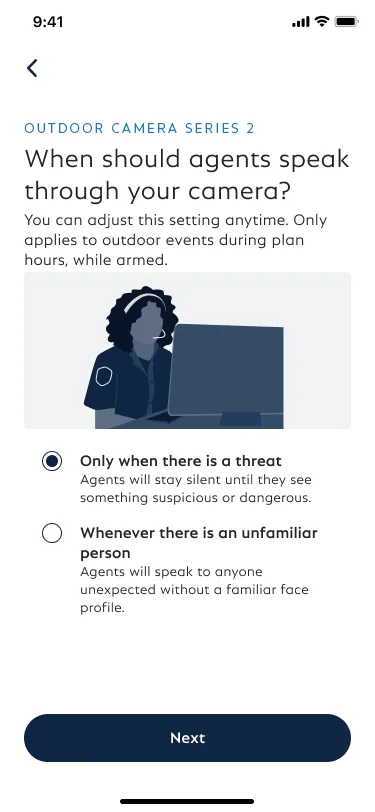
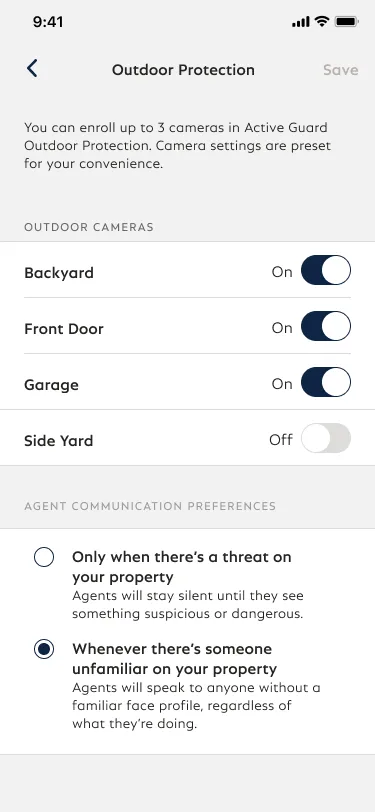
You may adjust this setting at any time by taking the following steps:
Open the SimpliSafe® Mobile App on your phone
Choose My System from the bottom navigation bar
Tap on Outdoor Protection
Choose your desired setting under Agent Communication Preferences
Enrolling After Installation
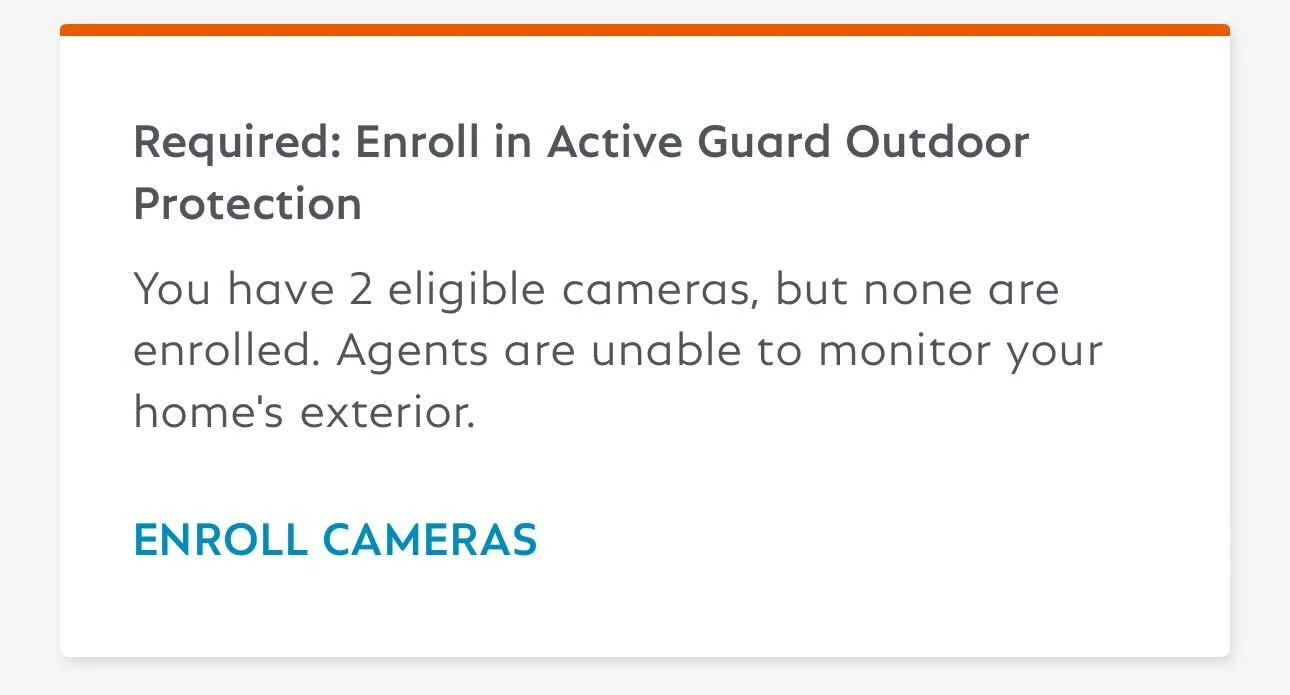
If you choose “Skip Enrollment” during the camera installation process, you’ll have the option to come back to this later. The app will prompt you to enroll from the Overview tab, or you can manually enroll cameras under My System > Camera Settings (opens in new tab) > Outdoor Protection.
From the Overview Tab
From the Overview Tab in the SimpliSafe® Mobile App, you may have a prompt to Finish Setup to enroll in SimpliSafe® Active Guard Outdoor Protection. To get started:
Tap on “Finish Setup”
Toggle the cameras you want to enroll in SimpliSafe® Active Guard Outdoor Protection
You can enroll up to three cameras, but you will need at least 1 Outdoor Security Camera Series 2 or Video Doorbell Series 2 enrolled if you want to use Video Doorbell Pro with this service
Select your agent communication preference. You can choose for the agent to initiate Two-Way Audio only when there is a threat, or whenever there is an unfamiliar person
Tap Save in the upper right corner of the app to save your selections
Manually Enrolling Using Camera Settings
You may also enroll manually under the Camera Settings (opens in new tab) within the SimpliSafe® Mobile App (opens in new tab).
Choose My System from the bottom navigation bar
Tap on Outdoor Protection
Toggle on the cameras that you want to be enrolled by SimpliSafe® Active Guard Outdoor Protection
Please note that you will need at least 1 Outdoor Security Camera Series 2 or Video Doorbell Series 2 enrolled if you want to use Video Doorbell Pro with this service
Select your agent communication preference. You can choose for the agent to initiate Two-Way Audio only when there is a threat, or whenever there is an unfamiliar person
Tap Save in the upper right corner of the app to save your selections
Please note: users granted access to your system through our Additional User Access functionality (opens in new tab) cannot enroll cameras into SimpliSafe® Active Guard Outdoor Protection. Only owners on the account have that capability.