
How to Take a Photo of Video Footage from within the SimpliSafe® Mobile App
Photo capture within the SimpliSafe® Mobile App allows you to easily take a photo or screenshot of a video recording from your system timeline. You can also use the filters at the top of the timeline to filter by Date or by a specific camera to better locate the footage you wish to view.
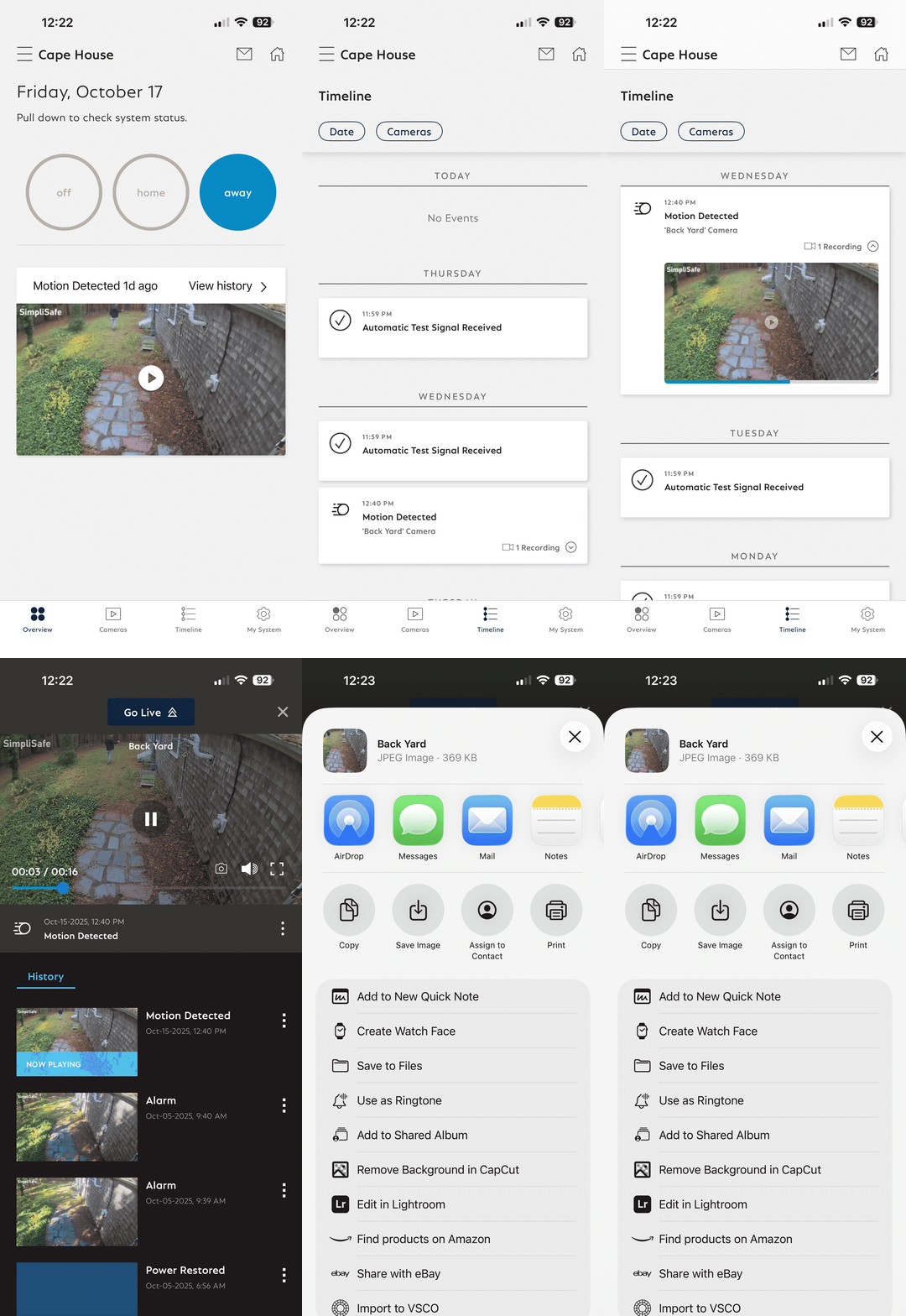
To Use Photo Capture
Open the SimpliSafe® Mobile App (opens in new tab) on your phone or tablet
Choose Timeline (opens in new tab) from the bottom navigation bar
Tap on any motion event from your historical timeline
Press the camera icon on the video control overlay of the video
Choose Save Image to save the snapshot to your device
Note, you may need to allow SimpliSafe® permission to your photos prior to being able to save the image locally.