
How to Change your Wi-Fi for your SimpliSafe® System
If you change your Wi-Fi network name and/or password for any reason (such as moving into a new home, or receiving a new router), you’ll need to update your SimpliSafe® System with the new credentials. You will always want to update the Base Station Wi-Fi first before proceeding to the camera steps. If you do not update your Base Station’s Wi-Fi first, you will be unable to reconnect Outdoor Cameras or any Smart Alarm Indoor Cameras.
Please note that your network will need to meet our system requirements (opens in new tab) to connect your system to Wi-Fi. At a very basic level, you will need a 2.4GHz wireless connection that’s configured as WPA2, WPA3, or WPA2/3 Mixed Mode.
Connecting the Base Station to your new Wi-Fi using the SimpliSafe® Mobile App
Please note that these steps are only if you have a monitoring plan that supports built-in network backup (opens in new tab). If you do not have a monitoring plan, please proceed to the Keypad steps below.
Open the SimpliSafe® Mobile App (opens in new tab) on your phone or tablet
Choose My System from the bottom navigation bar, followed by Base Station Settings (opens in new tab)
Tap on ‘WiFi Network’ and follow the in-app prompts to connect to your new network
Your app will state “Yay! Your Base Station is connected” if the credentials are correct.
Tap Done to exit the Wi-Fi setup mode
Connecting the Base Station to your new Wi-Fi using the Keypad
Using your Keypad, press the Menu button
Then, enter your Master PIN
Select System Settings
Then press the right side of the screen to choose Wi-Fi, followed by Edit
Next, choose your network from the list of available options by tapping “Use”
Enter your password by using the Keypad’s buttons to type in ABC mode (opens in new tab) (this is similar to T9 which was used for texting with older cell phones)
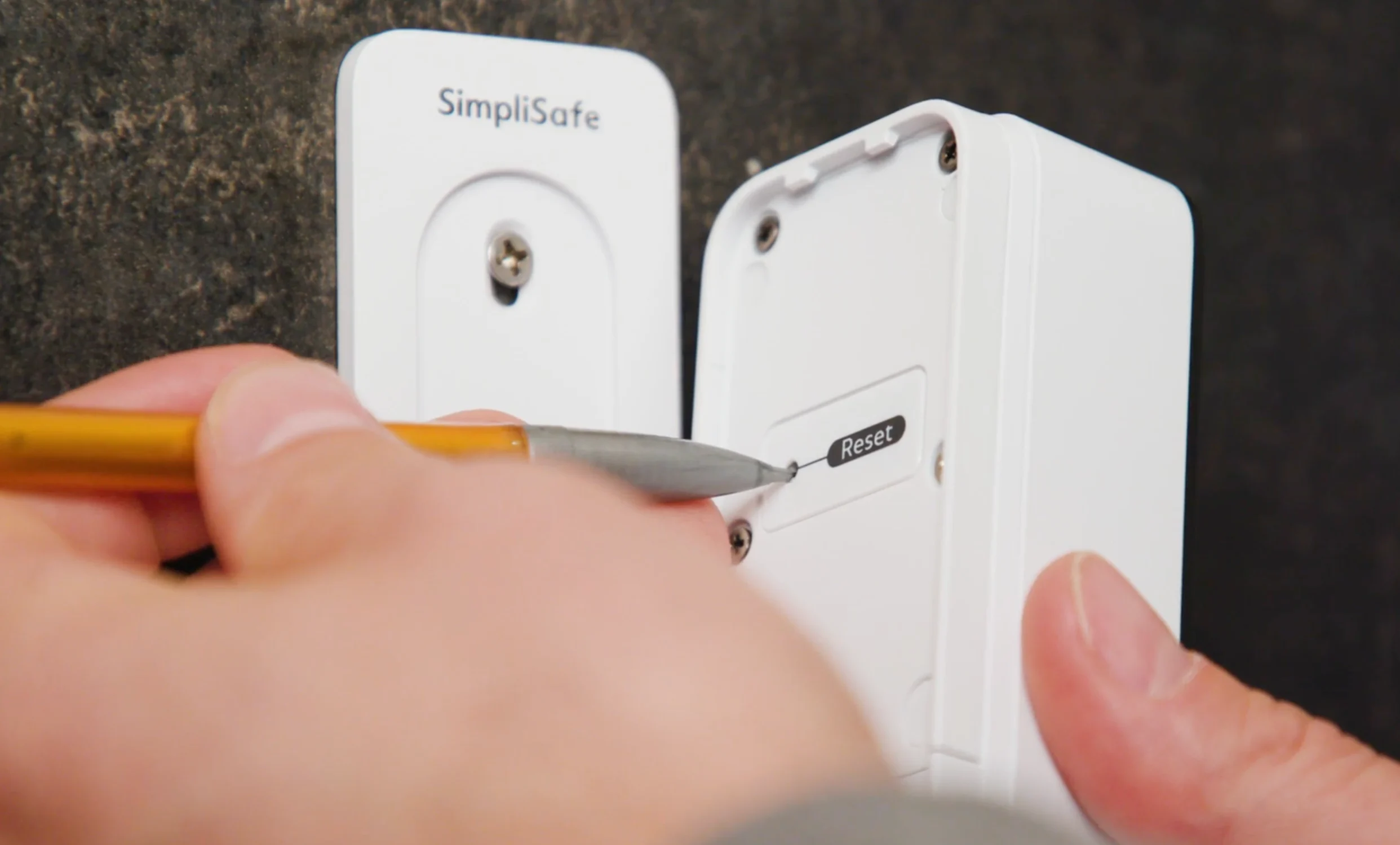
Changing Wi-Fi Networks for Cameras
Related Articles
Video Doorbell Series 2 Overview and Installation Guide (opens in new tab)
Outdoor Camera Series 2 Overview and Installation Guide (opens in new tab)
Smart Alarm Wireless Indoor Security Camera Overview and Installation Guide (opens in new tab)
Wireless Outdoor Security Camera Overview and Installation Guide (opens in new tab)
Video Doorbell Pro Overview and Installation Guide (opens in new tab)
SimpliCam® Wired Indoor Security Camera Overview and Installation Guide (opens in new tab)